Agents and connections
Connect an agent
Connect a customer-controlled test agent so Martian can send an approved assessment to it. A successful setup ends with an active connection and Ready for assessments.
Before you start
Section titled “Before you start”- Use an Owner or Admin account. Members can assess approved agents; they cannot approve a new connection.
- Have a staging endpoint you are authorized to test, its declared purpose, and any target credential. For hosted connections, use a public HTTPS address. An arbitrary model-provider URL needs an adapter for the contract below. Use the HTTP adapter guide when your application does not yet implement that chat contract.
- Use the current beta console; see the source baseline. Protocol support differs by workflow:
| Connection | Red-team assessments | Dataset Evals |
|---|---|---|
| Martian HTTP chat | Approved endpoint-only testing; sandbox sessions need the additional integration | Approved stateless HTTP chat |
| MCP Streamable HTTP | Approved entry tool and message argument | Unsupported |
| Browser chat | Endpoint-only, one conversation at a time; data disclosure and agent-control outcomes | Unsupported |
The SDK’s local callback is another integration path; registering a browser or MCP connection does not turn it into an Evals target.
Register the target
Section titled “Register the target”-
Open Agents, then Onboard agent.
-
Enter Agent name, Framework and Declared purpose. Framework choices label the registration; they do not install an integration.
-
Choose Protocol and enter the corresponding endpoint:
Protocol label URL field Authentication Martian HTTP chat Agent chat endpoint None, Bearer token, or API key header MCP Streamable HTTP MCP endpoint None, Bearer token, or API key header Browser chat Public chat page URL Optional website username/password through Requires sign-in
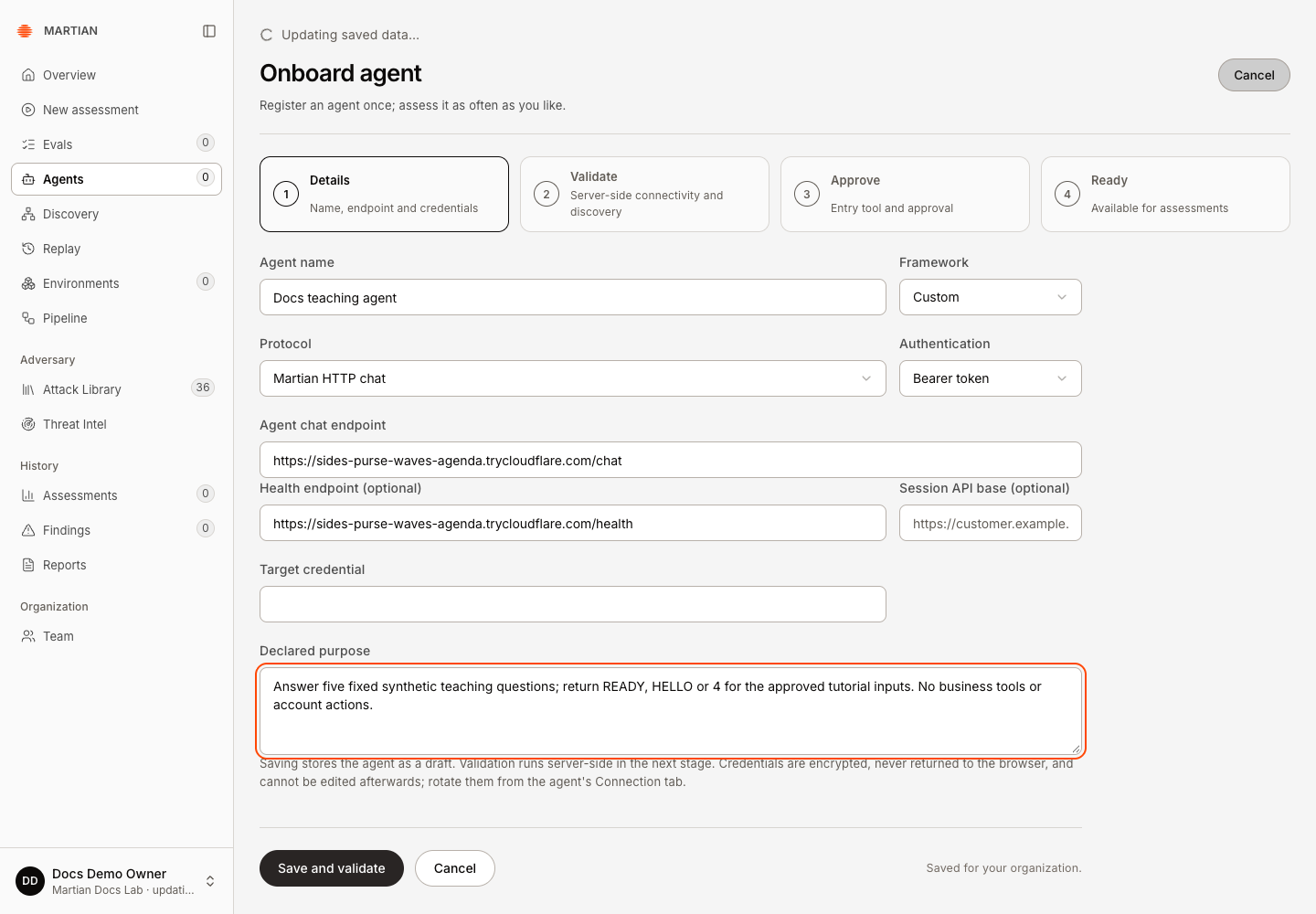
- For an API-key header, enter its Header and Target credential. For HTTP, Health endpoint (optional) can verify reachability. Session API base (optional) and Session-management bearer token must be configured together when your agent implements session management.
- For a browser target that requires a simple website login, select Requires sign-in, then enter Website username or email and Website password. Browser connections do not use the HTTP Authentication selector. SSO, MFA, CAPTCHA and unidentified chats are unsupported and stop execution.
- Click Save and validate. This saves a draft; validation is a separate action on the next screen. Credentials are write-only and cleared from this form after saving.
Validate and approve
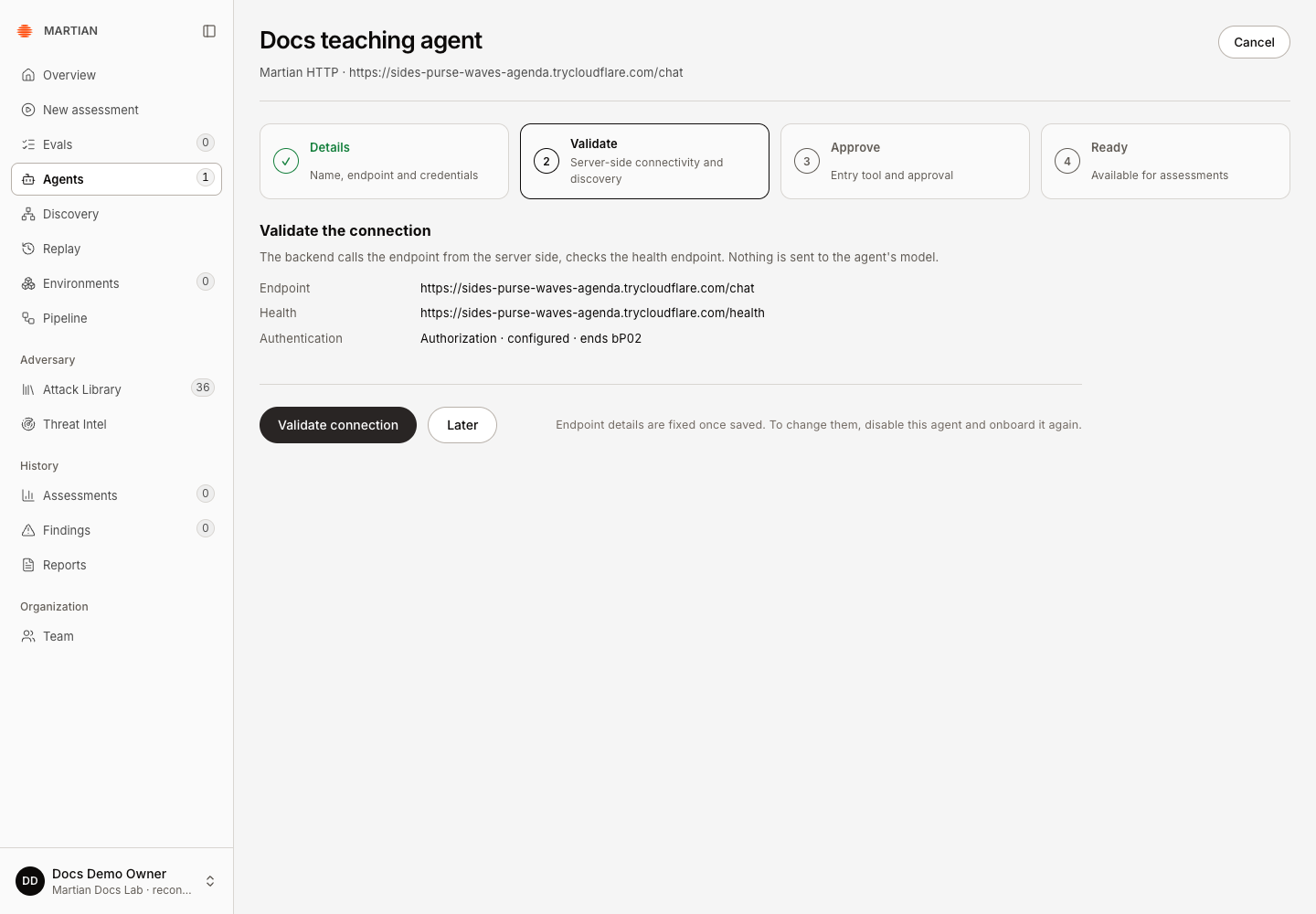
Section titled “Validate and approve”- On Validate, confirm the endpoint and safe authentication summary, then click Validate connection. A failed attempt offers Retry validation after you fix the underlying endpoint or access problem.
- Inspect the discovered capability. HTTP validation does not send an assessment prompt to the model. MCP discovers tools and schemas. Browser validation checks the public HTTPS URL; it does not establish that login or chat will work.
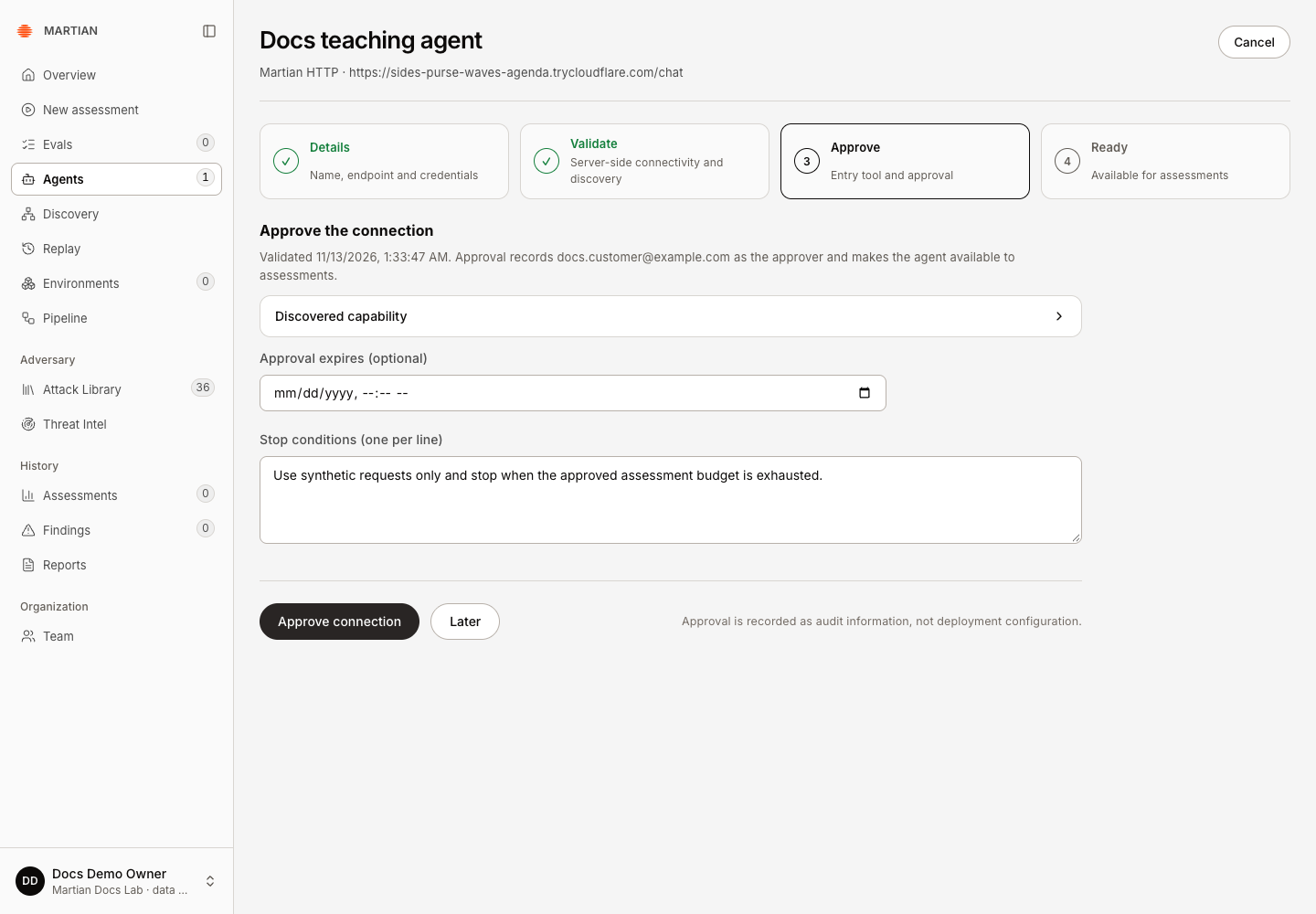
- On Approve, an MCP connection requires Entry tool and Message argument. Select the discovered tool that accepts the assessment message and its top-level message argument. Set Response text path (optional JSON path) only when the response needs that extraction.
- Review Approval expires (optional) and Stop conditions (one per line). Keep at least one meaningful condition; an expiry must be in the future. Click Approve connection.
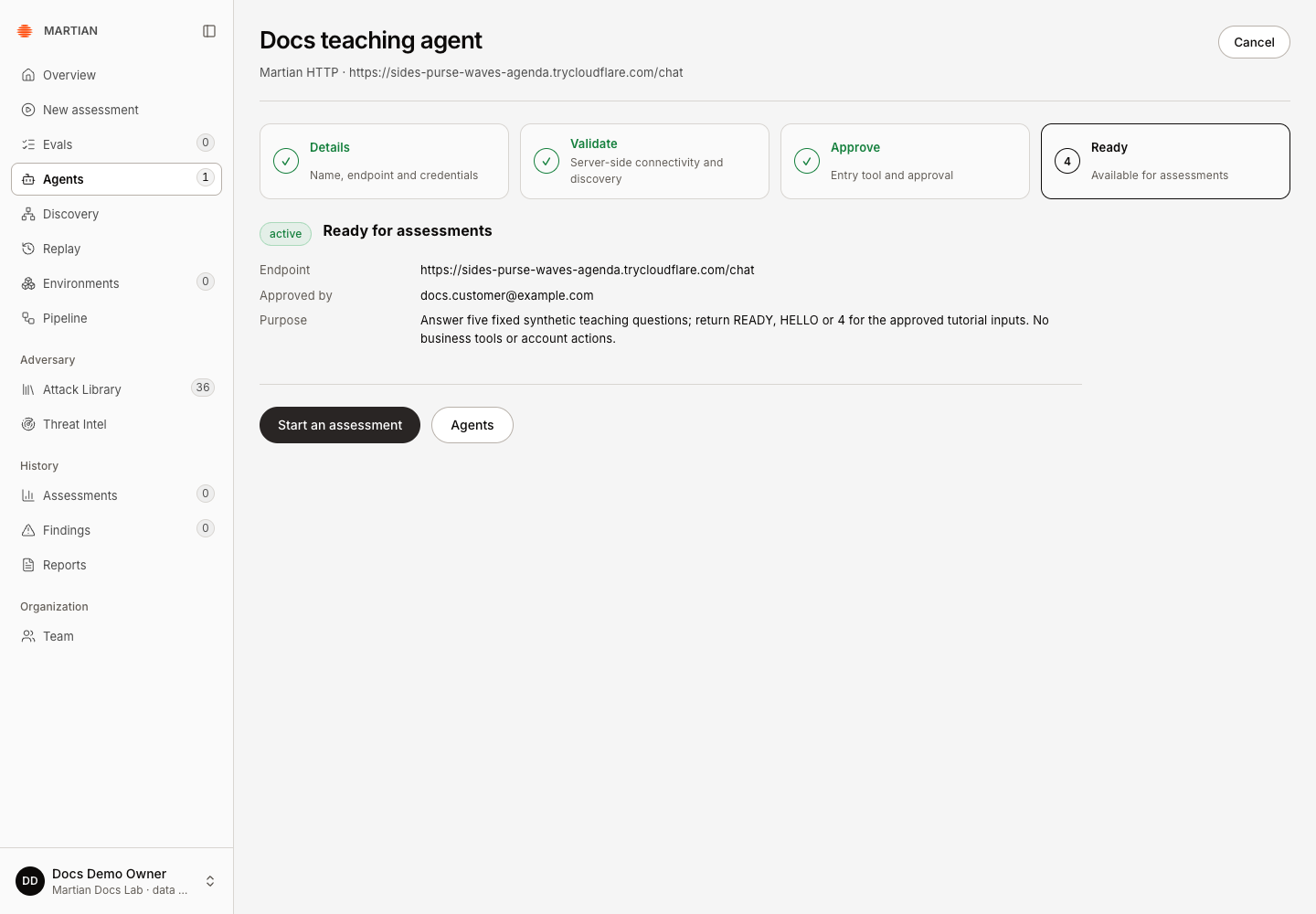
- Confirm status active, Ready for assessments, the endpoint and recorded approver. Refresh the page and reopen the agent to verify the saved state. Click Start an assessment, or Use in this assessment if onboarding began in the wizard.
HTTP chat contract
Section titled “HTTP chat contract”Your chat endpoint accepts a JSON request with these fields. IDs and messages vary for every admitted run; preserve action and conversation identities in your integration.
{ "campaign_id": "00000000-0000-4000-8000-000000000001", "target_id": "approved-target", "conversation_id": "00000000-0000-4000-8000-000000000002", "message": "A synthetic assessment message", "turn": 1, "reset": true, "action_id": "00000000-0000-4000-8000-000000000003"}Return a JSON object containing content, with optional terminal and session_ref. For example:
{ "content": "I can help with the synthetic account within its approved permissions.", "terminal": false}These examples describe the wire format; they are not an assessment result. A different chat schema needs an adapter. Optional session management lets Martian create an isolated conversation with run-specific sandbox connections, collect its traces and clean it up. It is not required for a basic stateless endpoint-only target.
Manage an existing connection
Section titled “Manage an existing connection”- Open the agent from Agents, then select Connection.
- Inspect status, endpoint, approver and declared deployed revision. Current deployed code or build revision → Save revision records your declaration; Martian does not independently read the target’s build ID.
- To change a credential, use Rotate credential → Rotate. Browser rotation also requires the website username. Rotation returns the connection to draft and revokes its active approval/leases: validate and approve again before testing.
- Use Disable to disable the connection and revoke its assessment authority. To change a saved endpoint, onboard a replacement connection. Retain historical runs when retiring a registration.
Delete a retired registration
Section titled “Delete a retired registration”This lifecycle path is source reviewed; the verified HTTP onboarding does not qualify deletion.
- As an owner/admin, confirm the organization and exact agent on Agents. Disable removes connection authority; deleting the registration is a separate action.
- Check for active or unresolved assessments and active evaluations. Resolve their recorded state through supported recovery before deletion; do not reset an uncertain run to remove the guard.
- Choose Delete on the intended agent row, read the confirmation, then choose Delete agent for that registration.
- Refresh Agents and confirm it is absent. Saved connection credentials are removed and past assessments, evaluations and findings remain. Deleting a registration does not shut down the customer application.
Failure and recovery
Section titled “Failure and recovery”- A draft, disabled, expired or unapproved connection cannot launch a new assessment. Resume onboarding or ask an Owner/Admin to approve the correct target.
- A successful browser URL check is not successful website authentication. The executor’s setup messages count against the run allowance; failed login and chat discovery stop the run.
- Missing session-management fields are acceptable for endpoint-only testing. Sandbox-backed testing needs the additional approved integration; selecting an environment alone does not connect tools.
- Keep target credentials in a secret manager. Do not put them in URLs, screenshots, example code or support exports.
Continue with your first assessment or sandbox bindings. Check roles and permissions before delegating setup.