Evals
Use scoring suites and monitoring
Save criteria and quality thresholds as a reusable suite, apply a particular version to completed outputs, and monitor its retained jobs and gate outcomes. This keeps a quality policy consistent across runs instead of rebuilding it differently each time.
Before you start
Section titled “Before you start”Use your organization in the current beta console. Members, admins and owners can create/version suites and apply them to completed runs. Any customer role can inspect authorized monitoring history. Have a completed evaluation in a writable project and understand the meaning of its scores.
Saving a suite makes no model calls. Applying code criteria uses saved outputs. Applying model criteria additionally needs enabled model judging and explicit cost acknowledgement. Custom registered judges are applied separately from these built-in-criterion suite definitions.
1. Create a small code-scoring suite
Section titled “1. Create a small code-scoring suite”- Open Evals → Judges, then choose Scoring suites.
- In Suite definition, choose New suite if another version is selected.
- Enter Suite name, for example Response format checks.
- Select Contains expected text and Response length (characters).
- For
contains_expected, set Quality threshold to1, Better when to Higher, and Minimum coverage to1. - For
response_length, choose a ceiling for the mean character count, set Better when to Lower, and keep Minimum coverage at1. For the short answers in the first-run tutorial, an example mean ceiling is80. - Click Create suite and confirm that version 1 is selected.
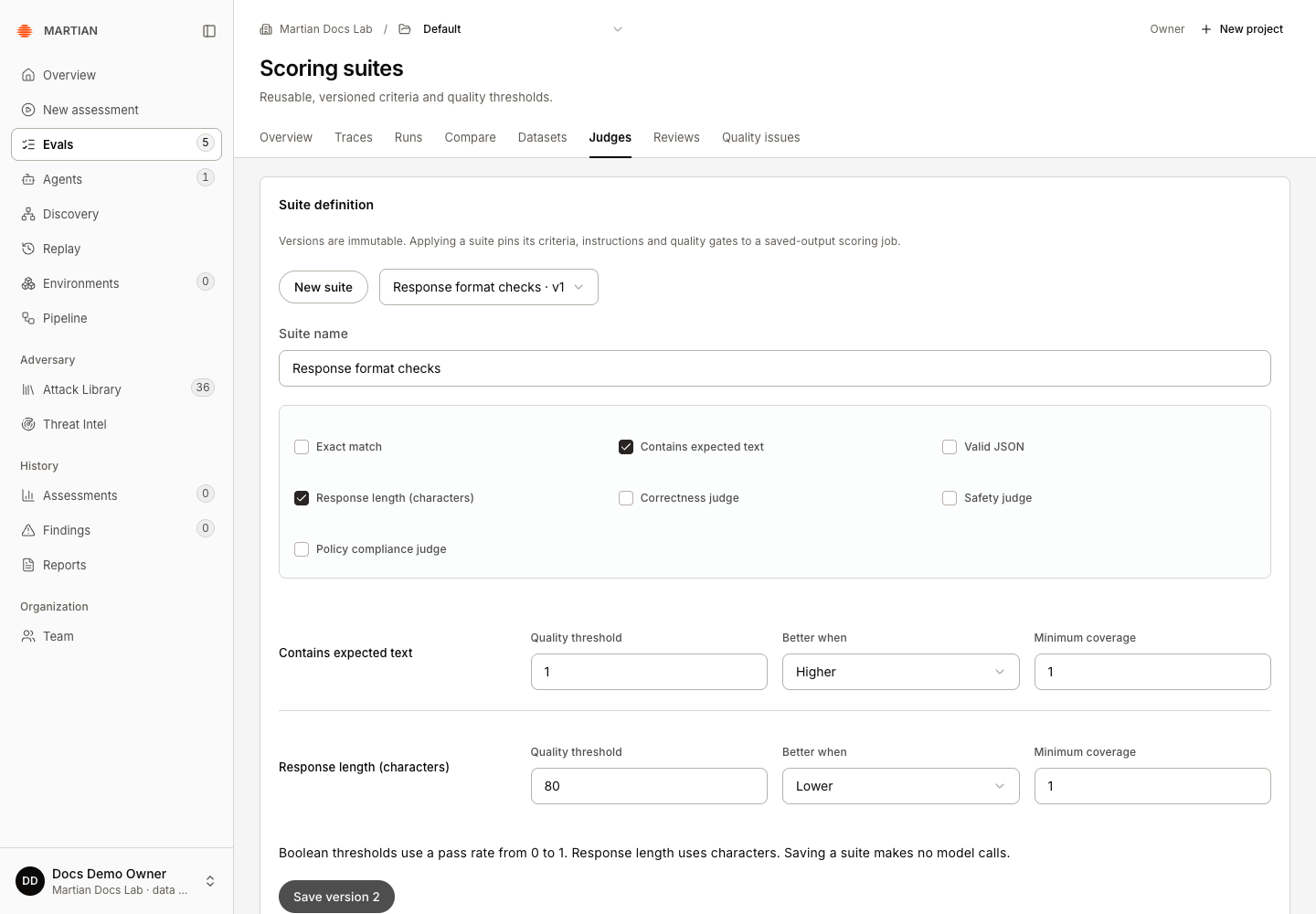
A Boolean threshold is a pass rate from 0 to 1. A response-length threshold compares the mean across evaluated records; it is not a maximum allowed for every response. Inspect the range and individual results when outliers matter. Minimum coverage is also 0 to 1; full coverage prevents missing/error assessments from being treated as satisfactory evidence. A blank threshold means that criterion has no configured gate; it is not an implicit passing gate.
2. Apply an exact suite version
Section titled “2. Apply an exact suite version”- Open a completed run and choose Score saved outputs.
- In Suite version, select Response format checks · v1.
- Confirm the pinned criteria and any policy instructions. Their controls are locked to the suite definition.
- If the chosen suite includes model criteria, read and select the provider-charge acknowledgement. The example code-only suite does not require a model call.
- Click Apply scorers and wait for completion.
- Select the resulting Assessment job and open the run’s Overview to inspect its scorecard, thresholds, coverage and gate results.
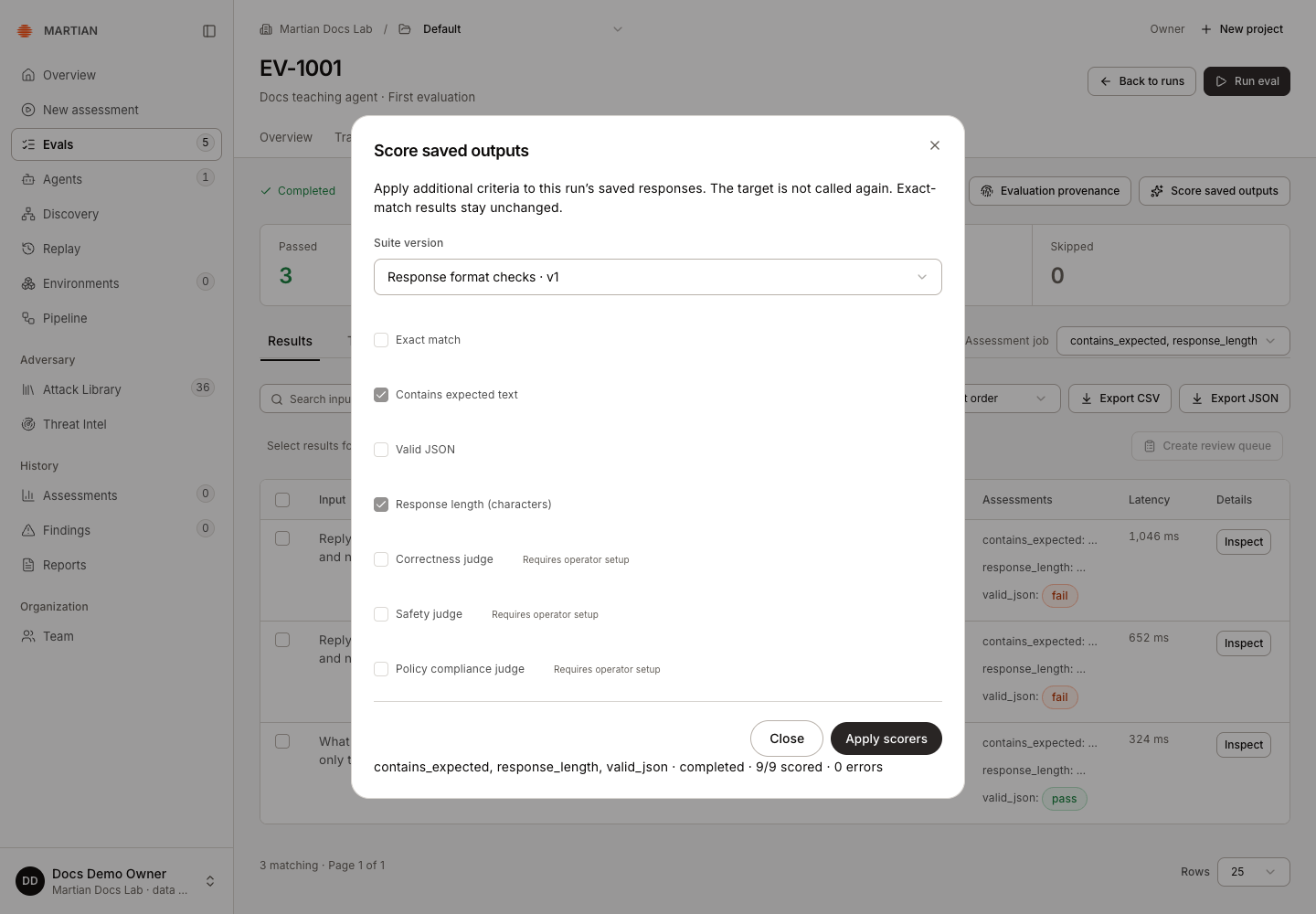
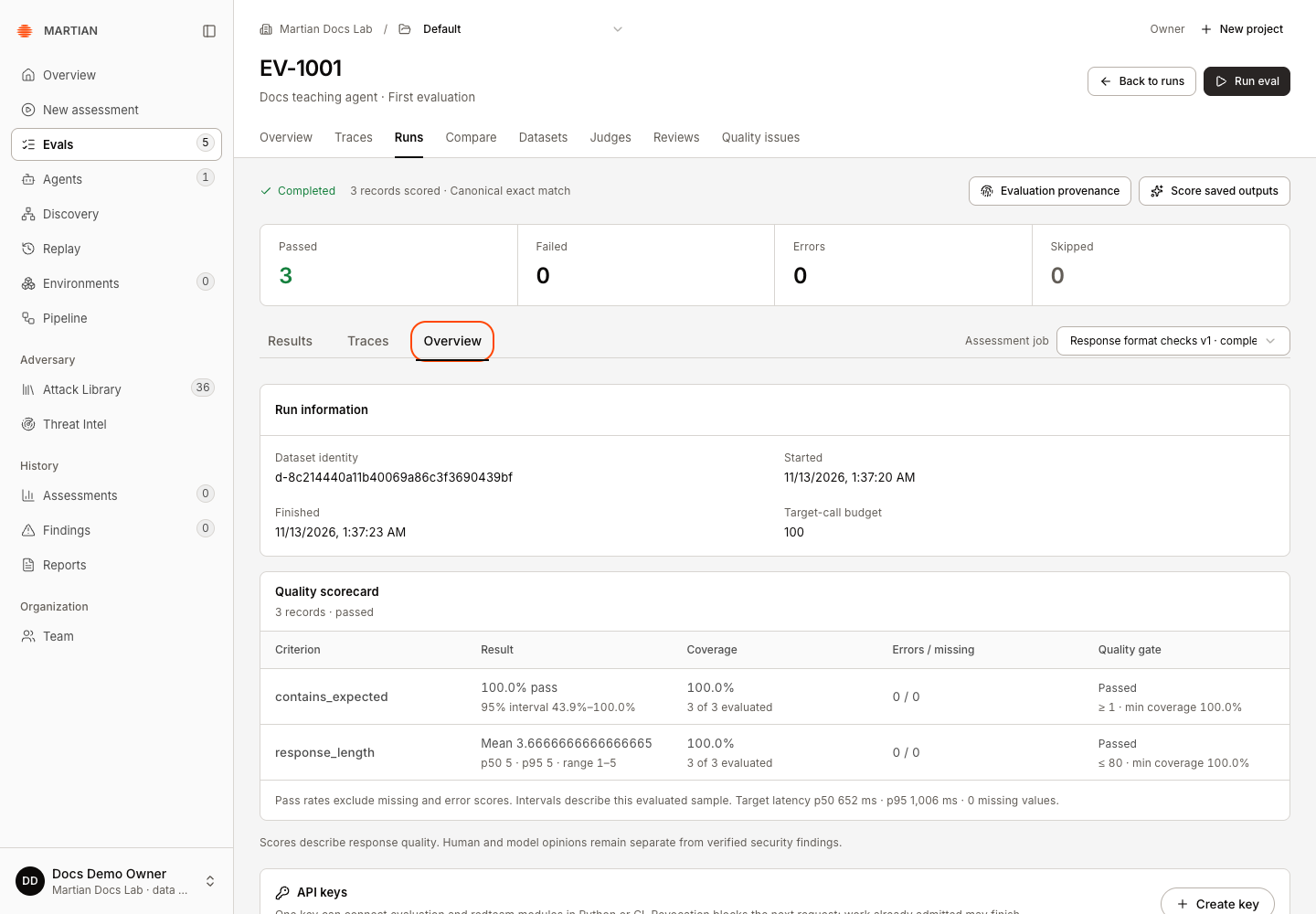
A gate can be Passed, Failed, Insufficient coverage or Unconfigured. Job completion and gate success are different: a finished job may show a failed or unconfigured gate. Review the actual values and coverage before acting on the summary.
3. Create a new version without changing history
Section titled “3. Create a new version without changing history”- Return to Scoring suites and choose the prior version in Edit suite version.
- Change the relevant criteria, instructions or thresholds. For this teaching example, lower
response_lengthfrom80to3, retaining its Lower direction and full coverage. - Click Save version 2.
- Repeat Apply an exact suite version, selecting Response format checks · v2 on the same completed run. Wait for the new scoring job to finish and inspect its Overview.
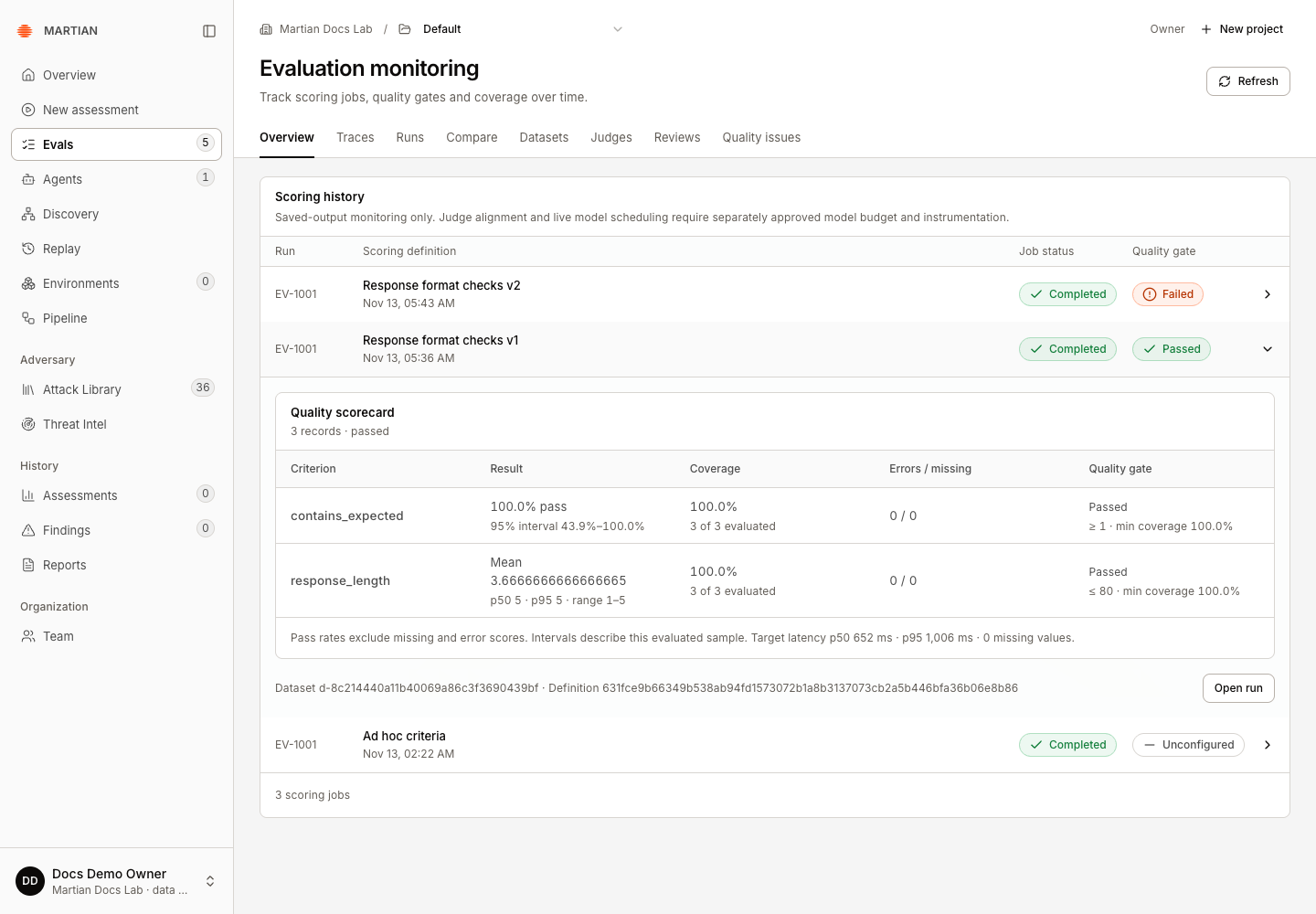
In the teaching example, version 2 lowers the mean response-length ceiling from 80 to 3. The same three saved answers have mean length about 3.67, so this newer gate fails while their canonical exact-match results remain passed. The earlier version 1 job still retains its passing 80-character policy.
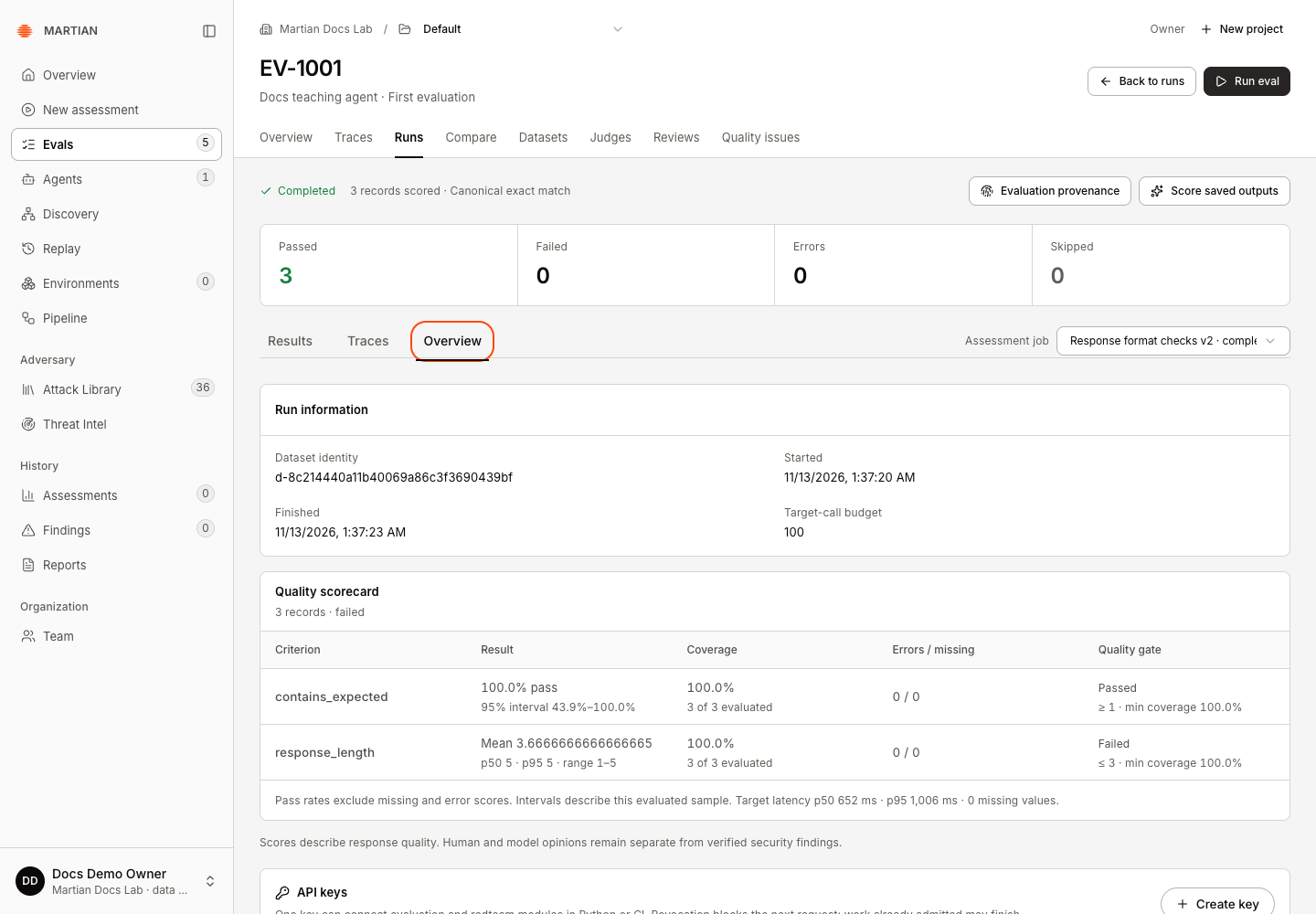
- In Assessment job, select the earlier version 1 job and confirm that it still records version 1 and its original definition.
Use the same historical suite version when you want a paired comparison under an unchanged policy. A different version may be intentionally useful, but it is a different scoring definition.
4. Inspect monitoring history
Section titled “4. Inspect monitoring history”Project Overview summarizes native trace activity and feedback. Monitoring on this page summarizes saved scoring jobs and gates; the two views answer different questions.
- Open Evals → Overview and choose Monitoring.
- Read Scoring history, including the run, scoring definition, job status and quality gate.
- Select a history entry to expand its scorecard, then choose Open run.
- In the opened run’s Assessment job, select the matching suite version and time. Open run initially shows that run’s latest job, which may use a newer policy than the history entry you opened.
- Refresh, reselect that historical job if needed, and confirm its suite version and gate result remain available.
Monitoring here is saved-output scoring history. It does not automatically schedule production target calls, continuously test a deployment, or establish model drift. Those claims require separate instrumentation and an explicitly supported execution workflow.
Failures and recovery
Section titled “Failures and recovery”- A stale suite-version edit requires reloading the latest saved definition before another version is admitted.
- Retry saved request checks an unresolved suite save. Do not create a different suite merely to bypass an uncertain response.
- One scoring job per organization can be active at a time. Wait for it to finish or use the cooperative scoring stop.
- A policy criterion requires its policy instructions. Missing assessments, provider errors and incomplete coverage need review; they are not Boolean passes.
Next, compare matching suite jobs or triage recorded quality issues.