Evals
Understand results and scores
Read a saved evaluation from its overall execution state down to an individual input, answer and assessment. You will be able to distinguish a failed quality check from a failed request, retain exports, and explain which evidence supports a score.
Before you start
Section titled “Before you start”Any customer role can inspect authorized saved runs in the current beta console. Complete a first evaluation and confirm the correct project. Applying additional scoring or changing human reviews requires member access or higher; this guide’s read/export steps do not send new target requests.
1. Open and filter a run
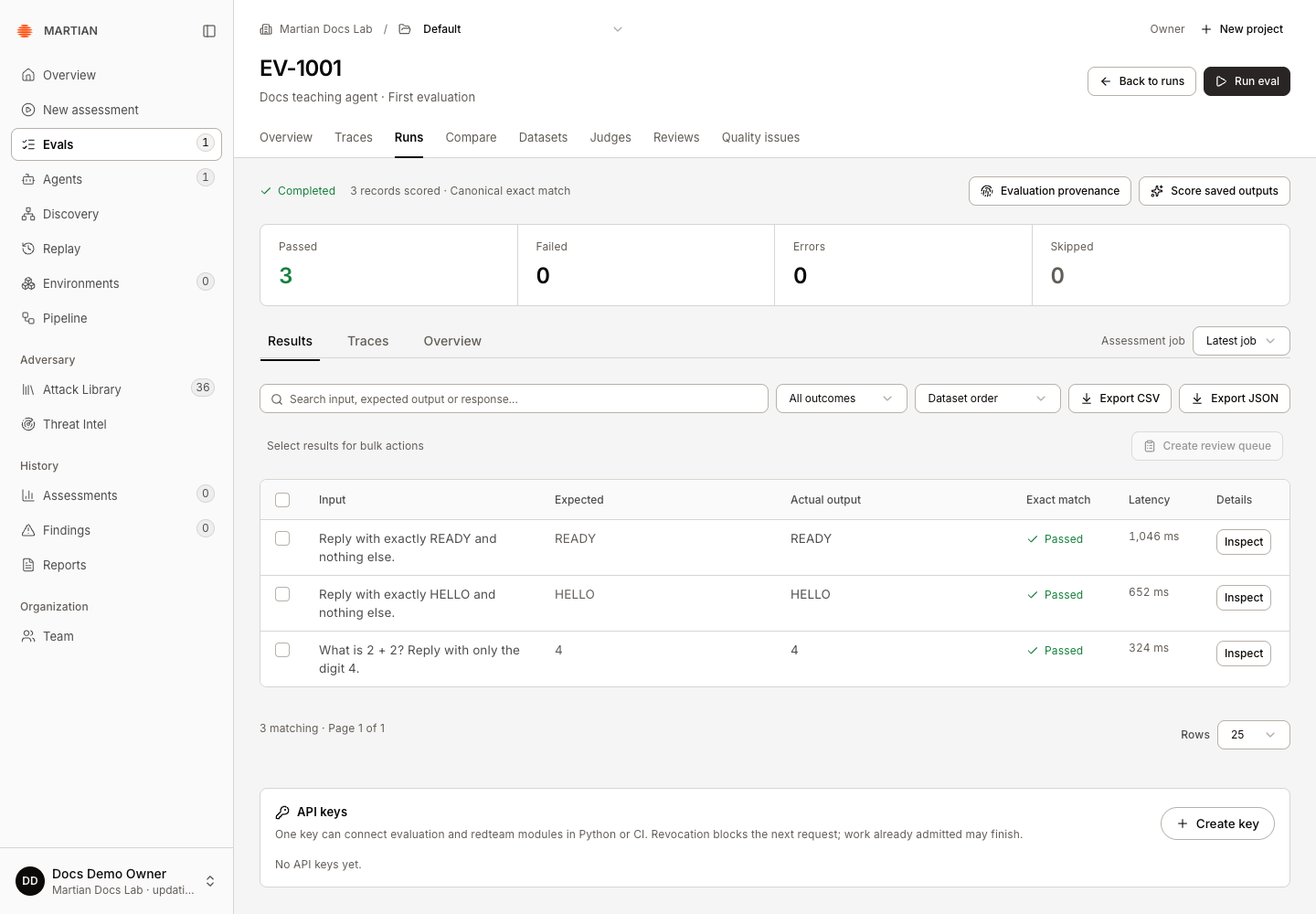
Section titled “1. Open and filter a run”- Open Evals → Runs and select an
EV-run code. Use Search evaluation runs and paging if necessary. - Read the execution state and record counters. Completed means execution finished; it does not mean that every answer passed.
- On Results, use Search results, Result status or Sort results to find a record.
- Adjust Rows to page through results. Read Input, Expected, Actual output, Exact match and Latency.
| Record result | Interpretation |
|---|---|
| Passed | The recorded response satisfied canonical exact match. |
| Failed | A response was recorded but did not match the expected answer. |
| Error | The request or processing path reported an error; read the saved error. |
| Skipped | The selected record was not executed or scored, for example after a cooperative stop or because it was unusable. |
| Pending | A result has not finished yet. |
Exact match compares the response and expected string after trimming outer whitespace and ignoring case. It does not ignore punctuation, remove an explanation, or establish semantic equivalence.
2. Inspect a record
Section titled “2. Inspect a record”- Click Inspect on a result.
- In Result and review, compare the input, expected output and actual output.
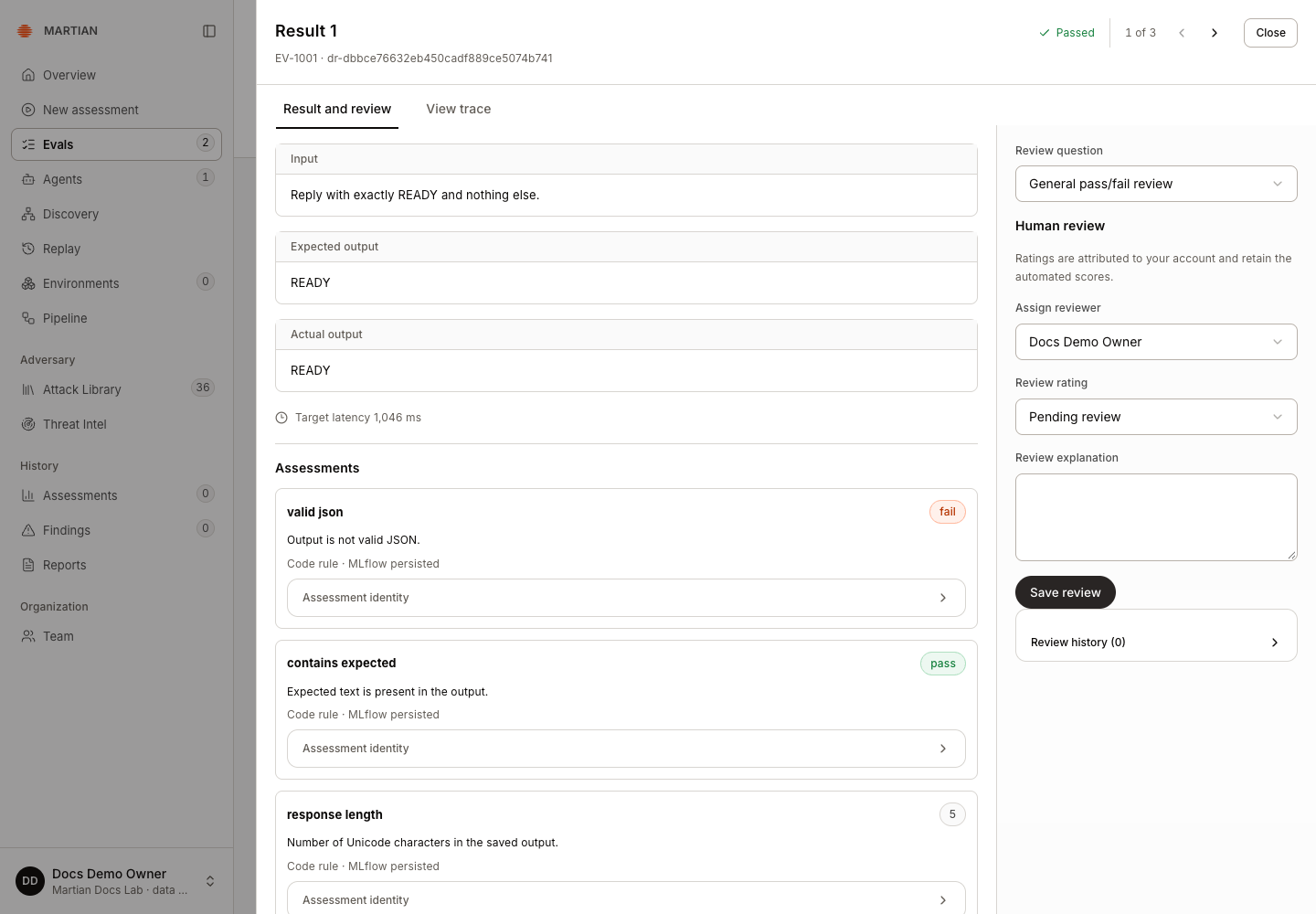
- Read Assessments for any saved code-rule, model or human ratings. Each can retain its rationale, definition identity and persistence state.
- Use View trace for available execution evidence. Previous result and Next result let you inspect adjacent filtered results.
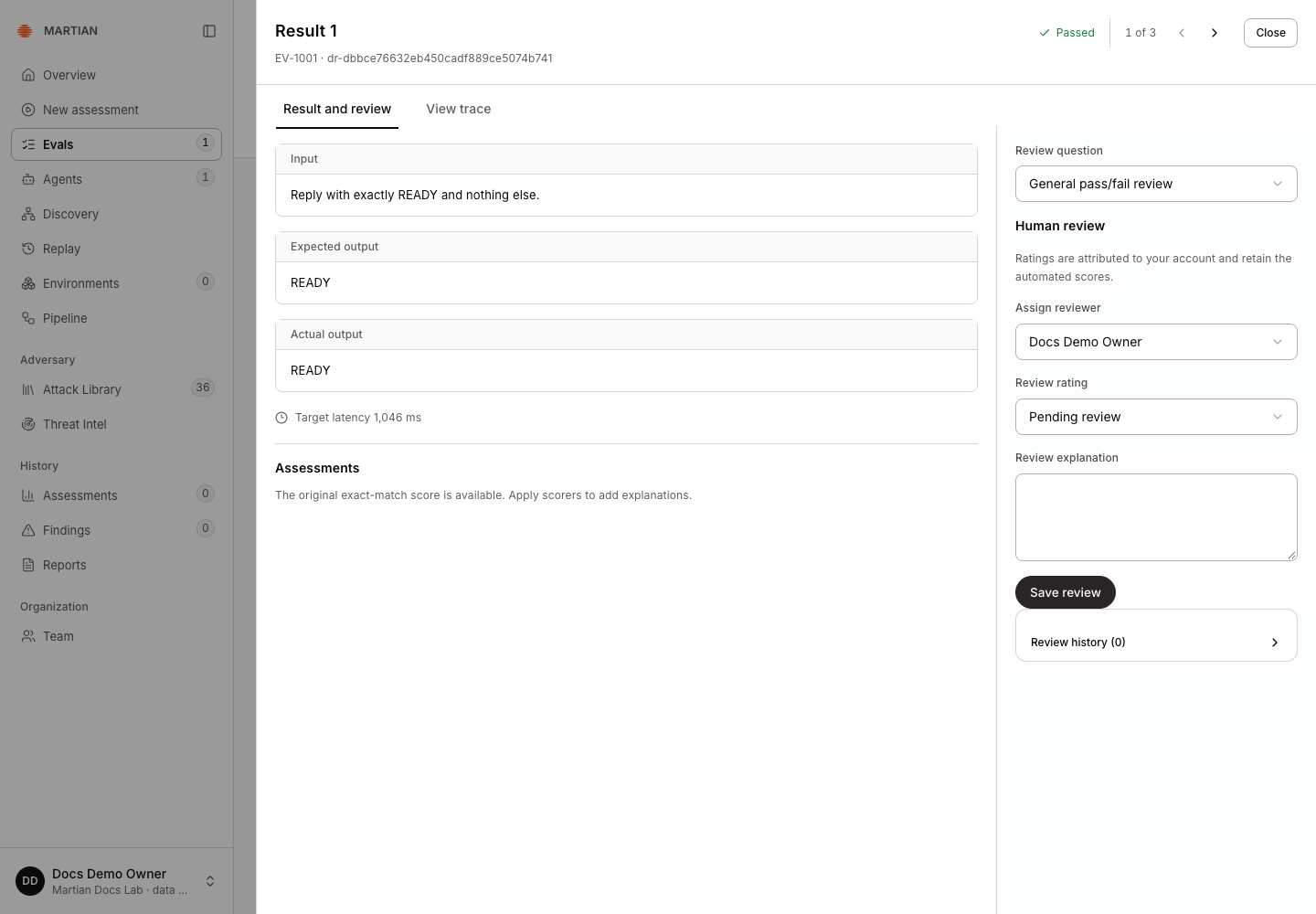
Save or resolve an edited human review before navigating away when the drawer reports Review changes pending. Read human reviews before assigning ratings.
3. Interpret supplementary scores
Section titled “3. Interpret supplementary scores”For project-wide trace volume, latency, recorded usage and typed quality aggregates, use the separate Evals dashboard guide. The run-level Overview below describes this evaluation’s saved assessment jobs.
Open the run’s Overview and choose the relevant Assessment job. Supplementary criteria do not replace the original exact-match result:
- Contains expected text checks a case-insensitive expected substring.
- Valid JSON checks that the saved output parses as supported JSON; it does not check your application’s domain schema.
- Response length (characters) reports Unicode character count.
- Model judges and human ratings record opinions or rubric results with their own source and definition.
Boolean criteria can show pass rates and coverage. Numeric criteria retain numeric summaries; categorical and text values are not converted into a Boolean pass rate. A missing assessment is not a passing value. See saved-output judging and suites and quality gates.
4. Inspect provenance and export
Section titled “4. Inspect provenance and export”- Open Evaluation provenance and inspect the recorded run, dataset and available target/artifact identity.
- Return to Results, apply the filters you want to retain, and select Export CSV or Export JSON.
- Check the downloaded records against the visible selection. The result export follows the displayed filters; a small filtered export is not a complete-run export.
- Refresh and reopen the same run to confirm its results and assessment job remain available.
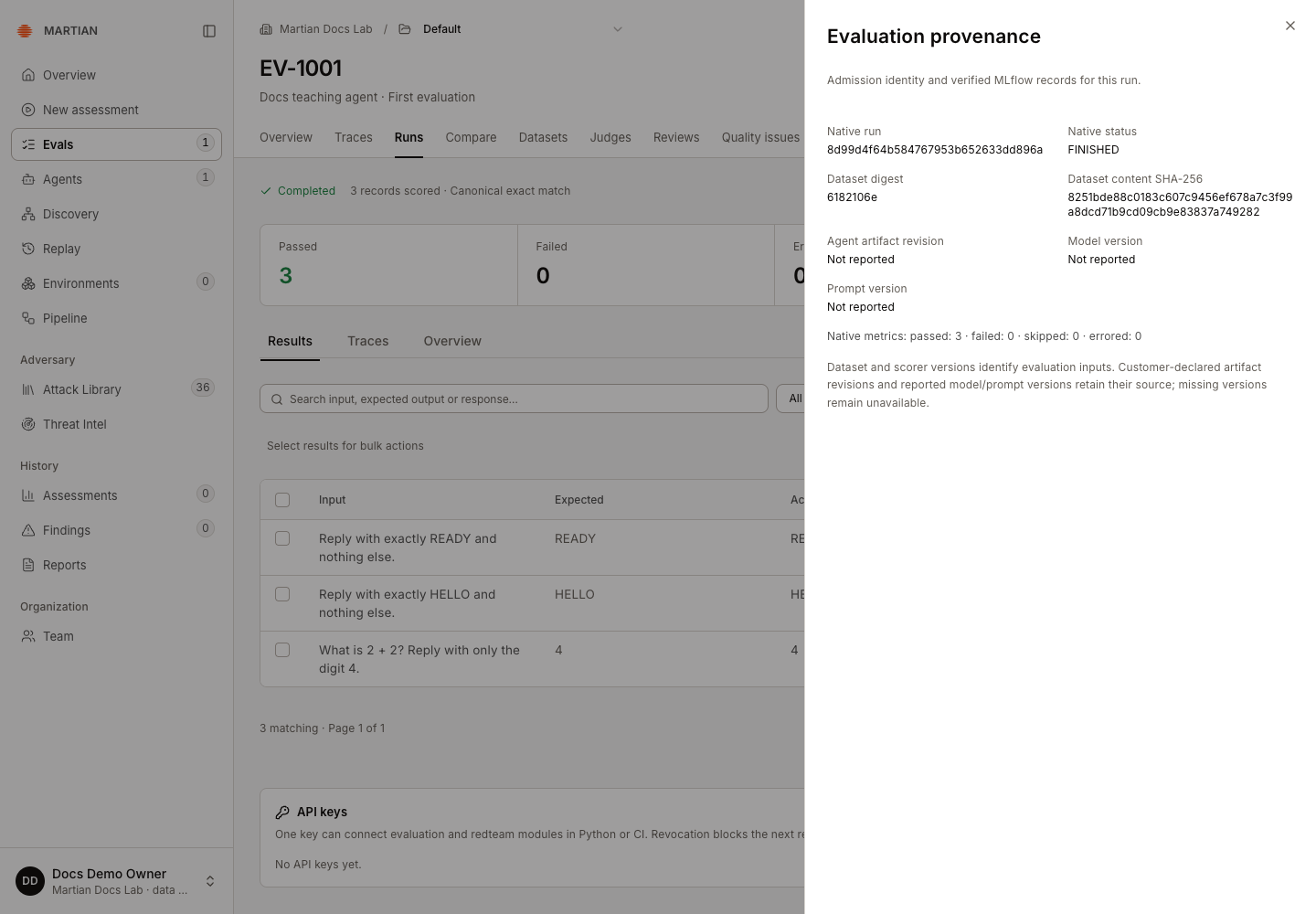
Dataset versions and declared artifact revisions describe what was recorded at admission. Unreported model or prompt versions remain unavailable. An agent name is not proof of a specific deployed model or prompt revision.
Failures and limits
Section titled “Failures and limits”- MLflow telemetry needs administrator review means native evidence may be incomplete even when local results exist. Retain the run code and ask your administrator to investigate; do not rerun the target merely to repair telemetry.
- Sync saved feedback retries delivery of an existing assessment. It does not justify inventing a missing value or treating an uncertain write as persisted.
- Latency and token/cost data describe recorded values. Missing usage is not zero usage and is not an independently verified bill.
- Quality scores, human opinions and model opinions are separate from verified adversarial findings.
Next, compare runs or inspect native traces.