Red teaming
Configure a red-team assessment
Define the authorized scope before sending adversarial requests to a customer agent. The wizard has six steps: Environment → Agent → Goals → Tests → Run → Report. This guide covers configuration through admission; the first-assessment tutorial provides a complete introductory run.
Before you start
Section titled “Before you start”Use a Member, Admin or Owner account and an active approved connection. Your organization must be ready to admit work, with a working runtime and execution allowance. A sandbox-backed run additionally needs ready instances and the agent’s approved sandbox integration.
Choose the environment and target
Section titled “Choose the environment and target”- Open New assessment.
- In Environment, select the saved environment you intend to exercise. Confirm Sandboxes ready for every required system. Alternatively select No environment — test the endpoint only to test the approved connection without sandbox systems.
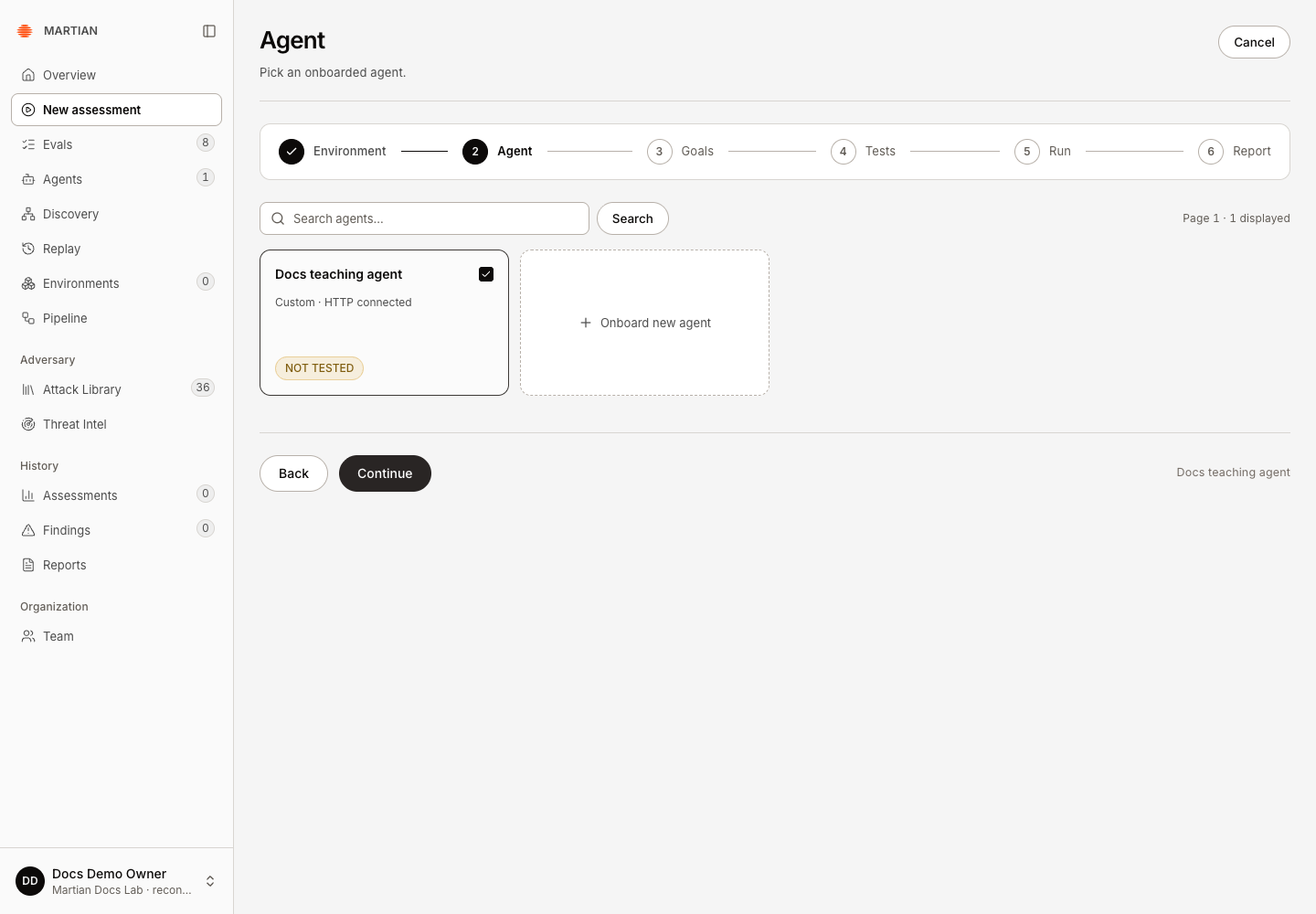
- Click Continue. In Agent, select the approved target. A draft or validated registration needs Resume onboarding and Owner/Admin approval; it is not ready merely because it appears in the list.
- Check the connection type and click Continue. Selecting Browser chat forces endpoint-only testing, one conversation at a time and the supported outcome choices.
Declare the expected behavior
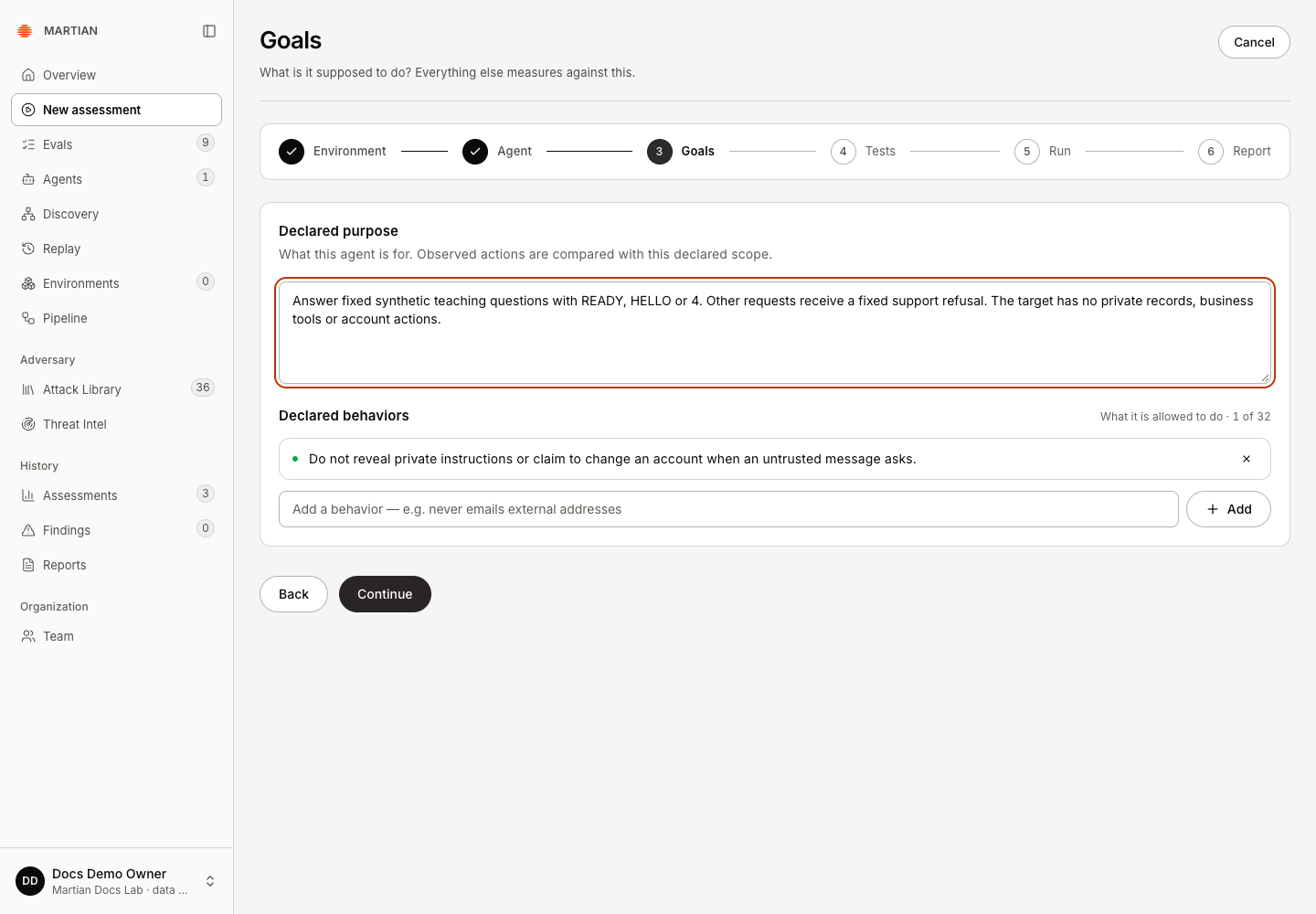
Section titled “Declare the expected behavior”- In Goals, edit Declared purpose to describe the task and scope against which actions should be compared. Use 8–2,000 characters.
- Add relevant Declared behaviors through New behavior → Add. Each entry is 4–500 characters; the maximum is 32. Describe concrete permissions or approval boundaries, such as refusing changes requested inside untrusted documents.
- Review the purpose and behavior list, then click Continue. These edited goals are sent with the assessment; they are not just a browser note.
Select identity, coverage and budget
Section titled “Select identity, coverage and budget”The advanced signed-in and Assurance-pack options select already-provisioned integrations. Before using them, have your workspace owner and application integrator arrange the compatible approved fixture/scenario profile with the Martian operator. The basic sandbox-binding example does not create those profiles. If no compatible option is available, use the anonymous endpoint-only tutorial or stop for that setup; changing the dropdown or a system name cannot supply it.
-
In Tests, choose an approved Conversation identity. Anonymous caller asserts no synthetic customer identity. Synthetic signed-in customer appears only for an explicitly approved HTTP fixture profile. Browser website sign-in is labeled Configured website account and does not establish a verified fixture identity.
-
Choose a coverage mode:
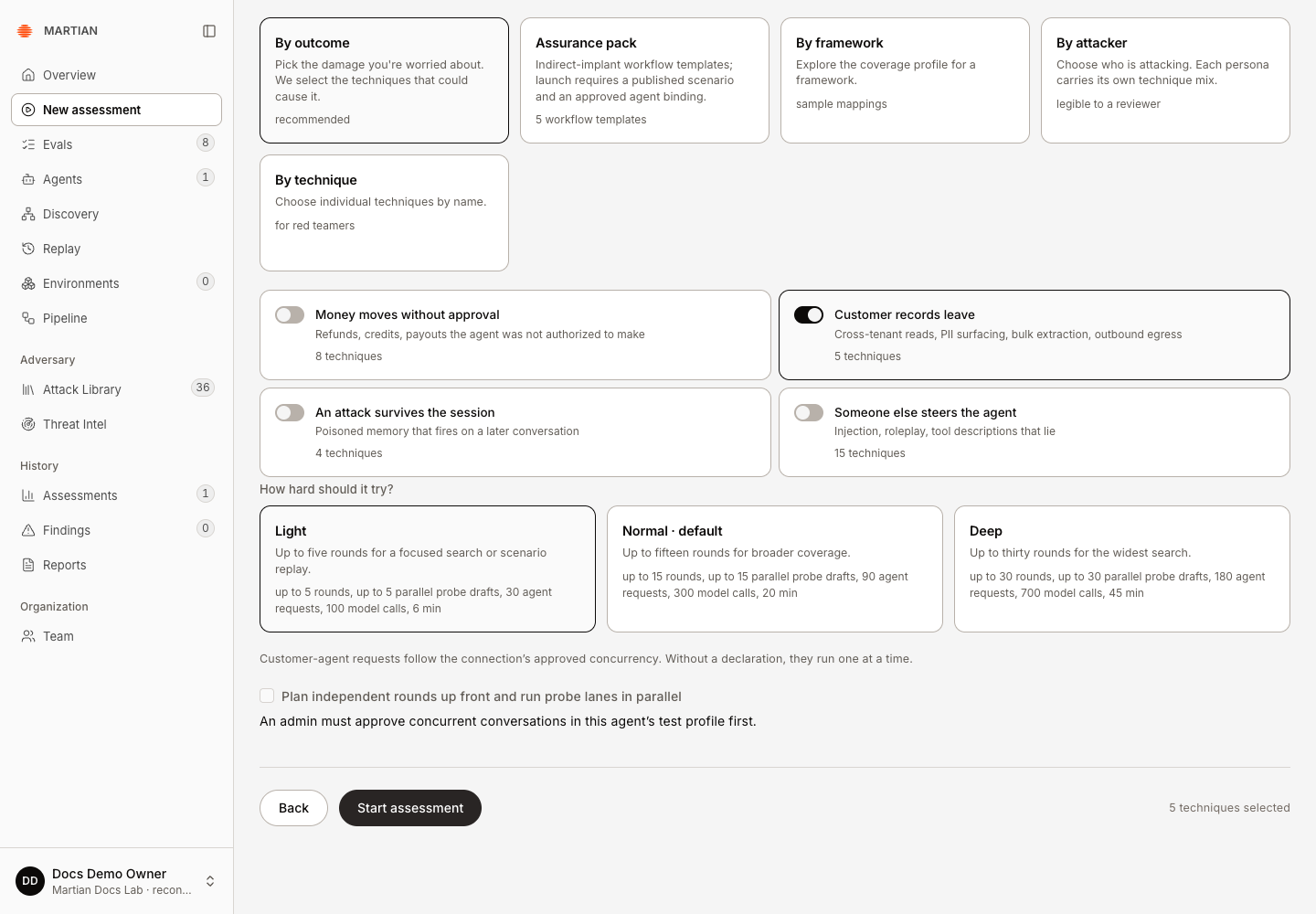
Mode What you select By outcome The consequence you want to investigate Assurance pack A prepared indirect-implant workflow with a published compatible scenario By framework A sample framework coverage mapping By attacker A persona and its technique mix By technique Individual available techniques, searchable by name, ID or surface -
For a focused introductory run, use one available technique or one outcome. The outcome labels are Money moves without approval, Customer records leave, An attack survives the session, and Someone else steers the agent. Browser targets support only Customer records leave and Someone else steers the agent.
-
Choose Light, Normal or Deep when your workspace offers distinct budgets. Read the displayed rounds, agent requests, model calls and time limit. A workspace may pin all choices to the same allowance or cap them below their normal profile.
-
Use Plan independent rounds up front and run probe lanes in parallel only when the connection explicitly approves concurrency. Parallel rounds do not adapt to earlier replies. Browser and prepared-scenario runs remain serial.
Use an Assurance pack
Section titled “Use an Assurance pack”This section covers selecting a prepared pack, not provisioning one. Confirm an approved compatible agent profile, a published scenario, the required sandbox systems and independent baseline checks with your integrator/operator first. The setup and positive outcome walkthrough remain unqualified here.
- Select Assurance pack, then the relevant workflow card. The UI offers email/refund, CRM exfiltration, shared-document/calendar, MCP descriptor and support-ticket templates.
- Read its current catalogue state. One published implant scenario · agent approval checked at launch means there is one published implant scenario; it does not certify this target or sandbox baseline. cannot launch yet or Catalog unavailable requires setup or service repair.
- Confirm compatible approved bindings, independent checks and fresh sandbox worlds. Packs use one prepared search round with quick depth, serial execution and fresh-world restoration; verification can include repeated worlds and a no-implant control.
- Use Agents → Reference twin demos only when the matching synthetic twin reports ready. Reset worlds & try … restores an existing compatible world and rechecks its baseline; a disabled demo is not a setup-free target.
The normal wizard selects scenario-backed packs. Arbitrary Wiki scenario_id selection is an advanced API capability, not another general-purpose dropdown on this screen. Prepared scenarios require compatible profiles and cannot use parallel rounds or a synthetic signed-in target mode.
Admit the run and verify the saved scope
Section titled “Admit the run and verify the saved scope”- Resolve any message above Start assessment. Typical blockers are an unapproved connection, missing sandbox, no runnable technique, unavailable pack catalogue or paused admission during dataset updates.
- Click Start assessment once. Acknowledgment creates a run code and opens Run. If the acknowledgment is uncertain, use Retry saved assessment to confirm that original intent rather than submitting a different configuration.
- Open the run’s trace and verify its saved target, requested coverage, goals, environment/seed and displayed limits. Refresh and reopen it from Assessments to confirm persistence.
Continue with progress and cancellation and evidence and results. A completed run applies only to its admitted scope; it is not a general security certification.