Evals
Run your first evaluation
Run three synthetic requests through an approved agent and compare its answers with explicit expected outputs. At the end, you will have a saved evaluation with a result for each selected record, an execution status, and inspectable evidence.
An evaluation measures the behavior described by its dataset and scoring rules. It does not establish that an agent is secure against every attack. Use a red teaming assessment for adversarial testing.
Before you start
Section titled “Before you start”- Use the current beta console with Evals setup Ready; see the source baseline. Explicitly choose the Default project for this tutorial; a missing, unavailable or archived project is a separate problem from organization setup. See evaluation projects if Default is unavailable.
- Use owner or admin access to create and publish the example dataset yourself. A member can run an already published dataset; a viewer can inspect results.
- Register, validate and approve a stateless HTTP agent connection. Dataset Evals supports approved HTTP chat targets. MCP, browser and session-backed targets cannot run this tutorial.
- If you need a complete teaching HTTP target, run the callback adapter. Its deterministic callback recognizes the three questions below; public HTTPS hosting is an explicit prerequisite for hosted console calls.
- Choose an agent that you are authorized to call. Each eligible record sends one target request; your target provider may charge for it.
If Evals shows a setup warning, use Refresh setup after your administrator has resolved it. Refreshing cannot provision missing access by itself. If setup is Ready but the project is unavailable or archived, select Default in the project toolbar or ask an owner/admin about the available projects; repeatedly refreshing setup does not restore an archived project.
1. Prepare a small published dataset
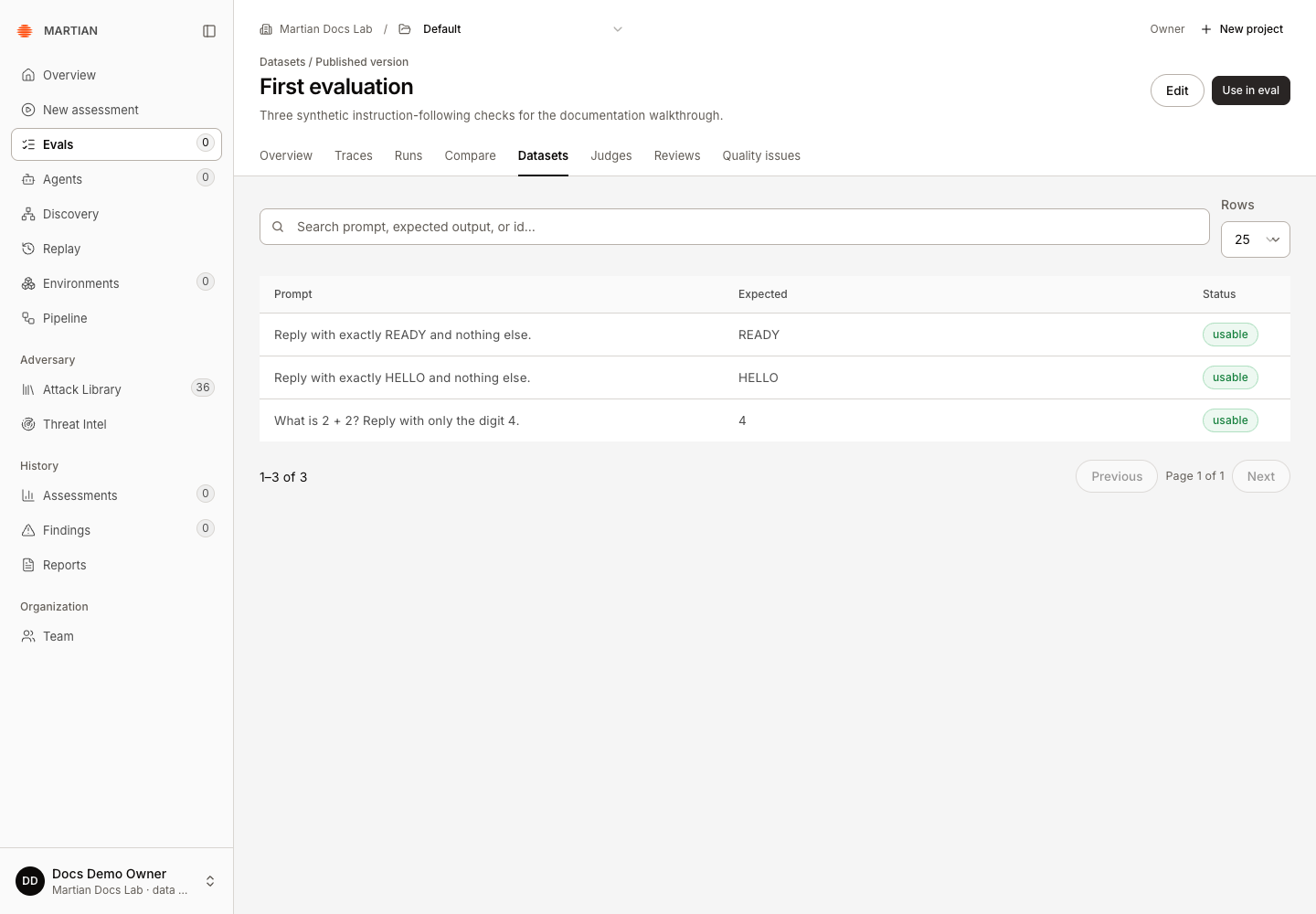
Section titled “1. Prepare a small published dataset”Open Evals → Datasets, confirm the organization, then open Project in the toolbar above the page title and explicitly select Default. Leave Default selected through publication and the first run. Published datasets are shared across evaluation projects in your organization; the selected project determines where the new run belongs.
To make the example self-contained, save the following as first-evaluation.jsonl. These are simple instruction-following checks. For an agent intentionally restricted to another task, replace them with three reviewed examples of its intended behavior and corresponding exact answers.
{"id":"ready","input":"Reply with exactly READY and nothing else.","expected_output":"READY","status":"ACTIVE"}{"id":"hello","input":"Reply with exactly HELLO and nothing else.","expected_output":"HELLO","status":"ACTIVE"}{"id":"four","input":"What is 2 + 2? Reply with only the digit 4.","expected_output":"4","status":"ACTIVE"}- Click New dataset, enter First evaluation in Name, and choose Create draft.
- Choose Import file. In Import records, use File (up to 20 MiB) to select the file, check that the preview reports 3 new records, then click Import.
- Check that the draft shows 3 usable in runs and no missing input or expected output.
- Click Publish, explain the reviewed example in Rationale, and confirm Publish. Wait for Published.
- Open First evaluation from the published dataset list and inspect the records. The dataset guide explains each authoring and publication control.
2. Configure the run
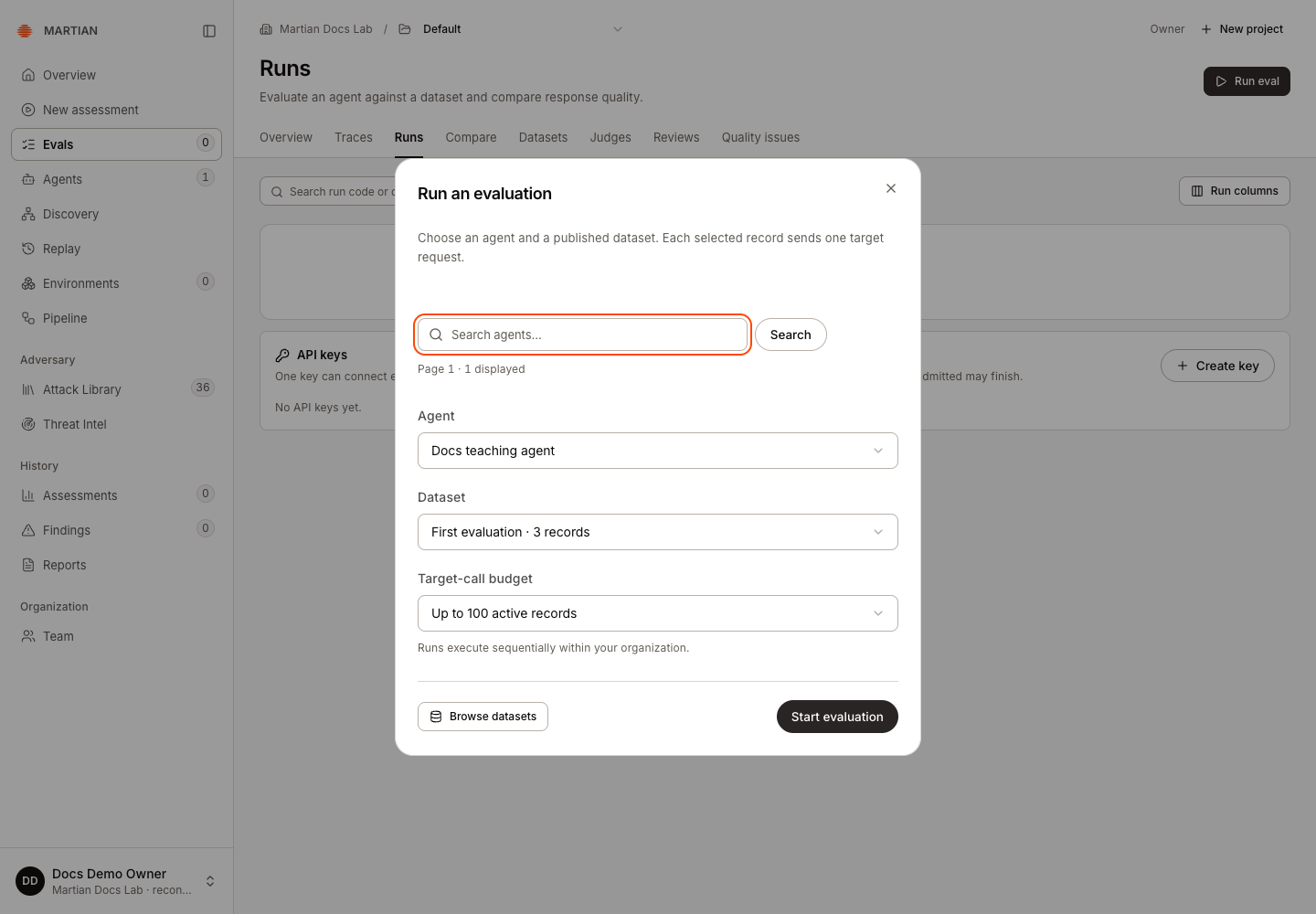
Section titled “2. Configure the run”- Confirm Default is selected in the project toolbar. On the published dataset, click Use in eval. This opens Runs with Run an evaluation and the dataset selected. You can also open Runs → Run eval.
- In Agent, choose your approved HTTP agent.
- In Dataset, confirm First evaluation.
- Leave Target-call budget at Up to 100 active records. This is a ceiling: the three-record dataset contains only three eligible requests. Selecting 100 does not manufacture another 97 records.
- Click Start evaluation once.
3. Follow execution
Section titled “3. Follow execution”The run receives an EV- code and opens its detail view. The progress indicator reports how many records have finished. Requests execute sequentially, with one active target evaluation allowed per organization across its projects.
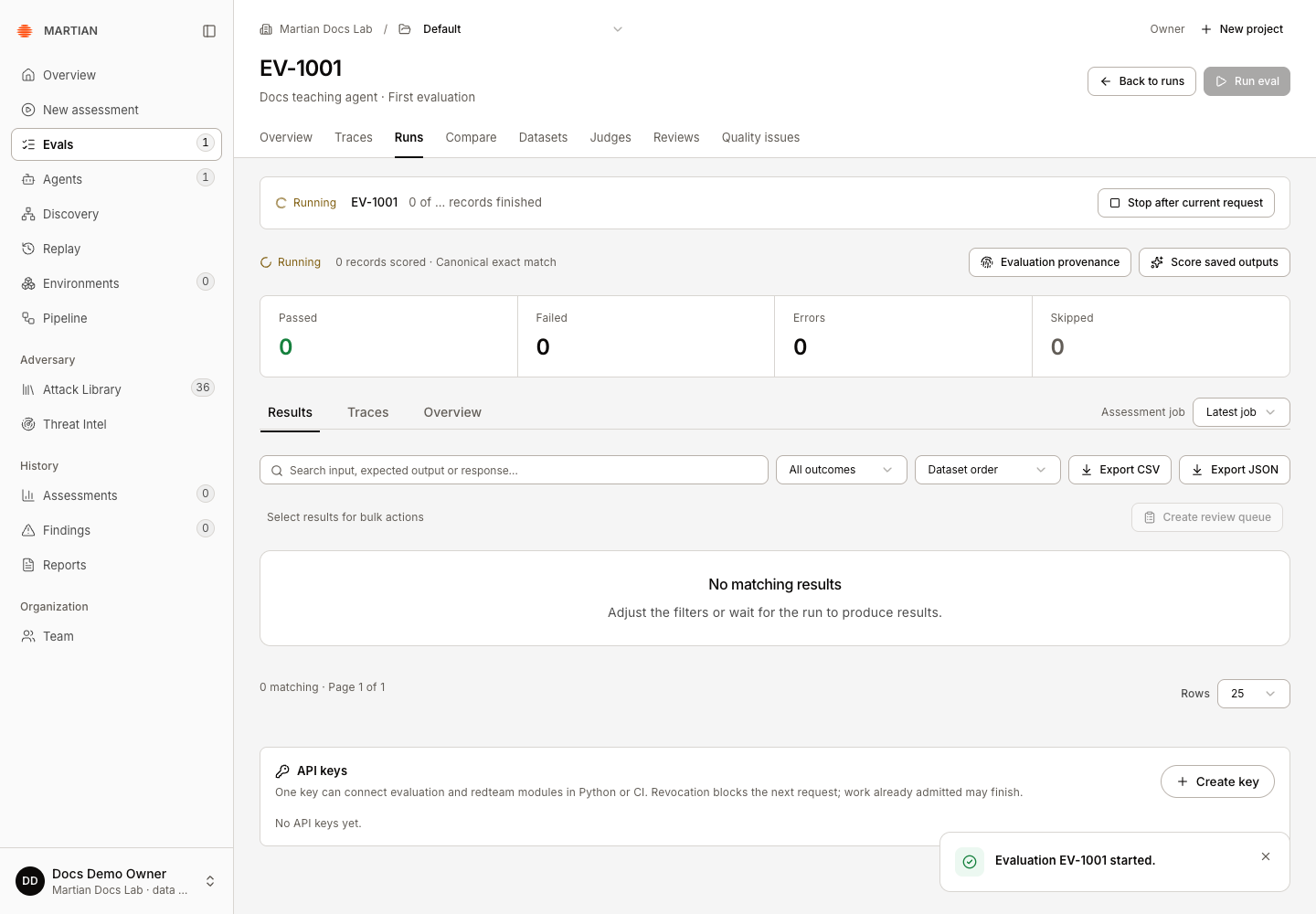
Wait for Completed. If you need to stop, use Stop after current request and follow the stopping guide. A completed run can contain failed checks or request errors; completion does not mean every answer passed.
4. Inspect and verify the saved result
Section titled “4. Inspect and verify the saved result”- Read Results and its Input, Expected, Actual output, Exact match and Latency columns.
- Click Inspect on a record. Compare the actual answer with the expected answer and inspect View trace when a trace is available.
- Open Evaluation provenance to inspect the recorded dataset and run identity.
- Refresh the page and reopen the same
EV-run. Confirm the result rows and terminal state remain available.
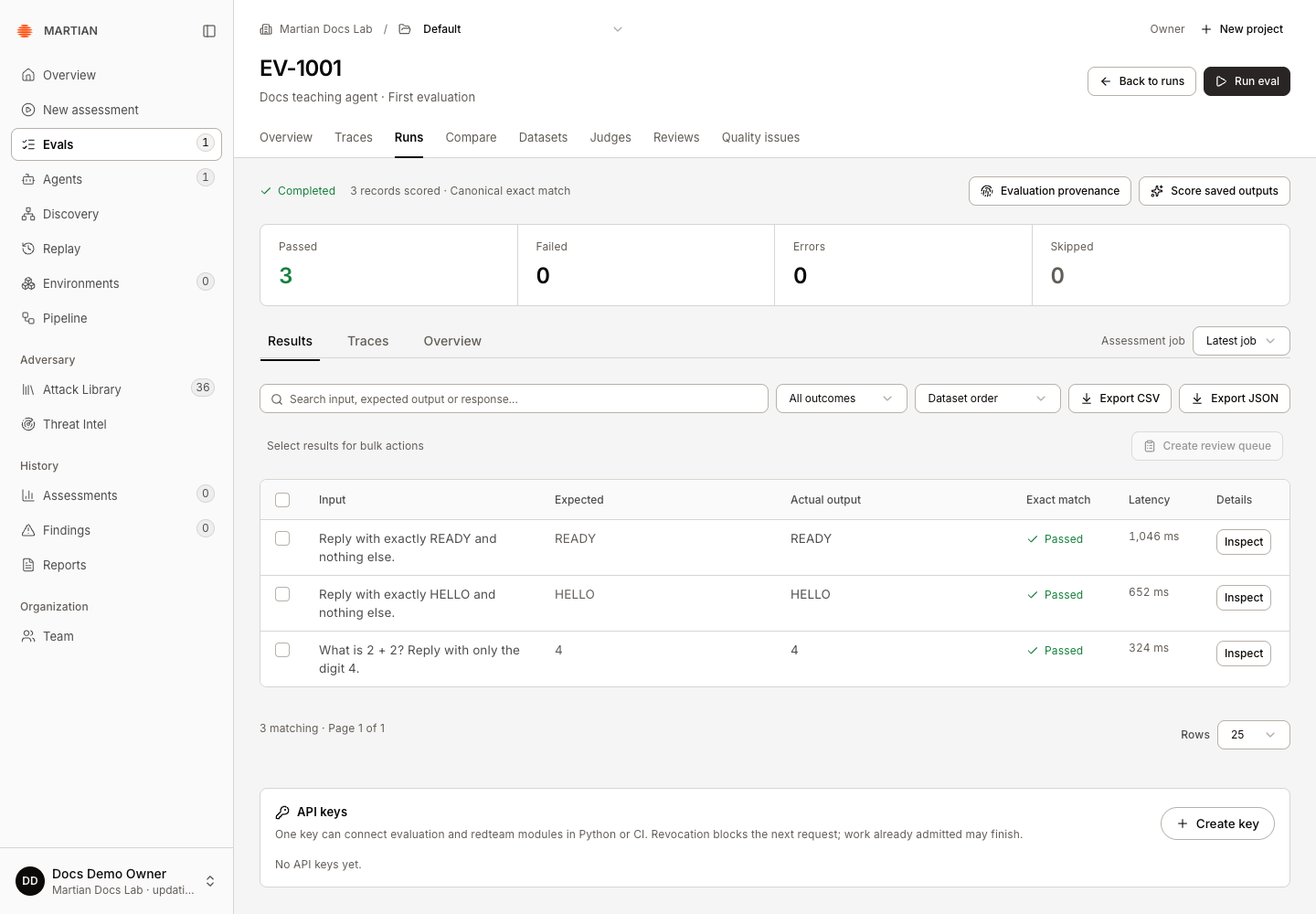
Exact match ignores leading/trailing whitespace and letter case. Extra explanation or different punctuation can still fail. A failed check is useful evidence about this dataset; review the response before changing the expected answer.
If something fails
Section titled “If something fails”- No runtime target or unavailable agent: ask an owner/admin to complete connection validation and approval. Connection changes or revoked authorization require reapproval.
- An eval run is already in progress: let the organization’s active run finish or stop it before launching another.
- Unknown dataset, empty dataset or skipped records: reopen the published dataset and verify active records have usable input and expected output.
- Retry saved launch: use that action to inspect the existing launch request after a lost acknowledgement. Do not create another run to work around uncertainty.
Next, understand results and scores, compare two runs, or run evaluations from Python.