Evals
Create and publish datasets
Build a reviewed set of input/expected-output records, then publish an immutable version that your team can select in Evals. Draft edits do not change the version pinned by an earlier run.
Before you start
Section titled “Before you start”Use the current beta Evals console; see the source baseline. Your organization’s setup must be Ready. Members, admins and owners can author drafts; admins and owners publish organization datasets. Viewers browse published datasets without editing them. See permissions.
Use synthetic records for a tutorial. Confirm that you have permission to send their inputs to the chosen target before running them. Dataset creation and import do not call your target.
1. Create the draft
Section titled “1. Create the draft”- Open Evals → Datasets and confirm the organization and project in the toolbar.
- Click New dataset.
- Enter a Name and optional Description, then click Create draft.
Names cannot contain / or control characters. The martian: prefix is reserved for read-only Martian datasets. Choose an organization name such as Support response checks.
2. Import or add records
Section titled “2. Import or add records”- Choose Import file, then use File (up to 20 MiB) in Import records to select a JSON, JSONL/NDJSON or CSV file.
- Inspect the preview’s new, updated and final record counts. Matching record IDs update existing draft records; other IDs add records.
- Click Import to apply the previewed file.
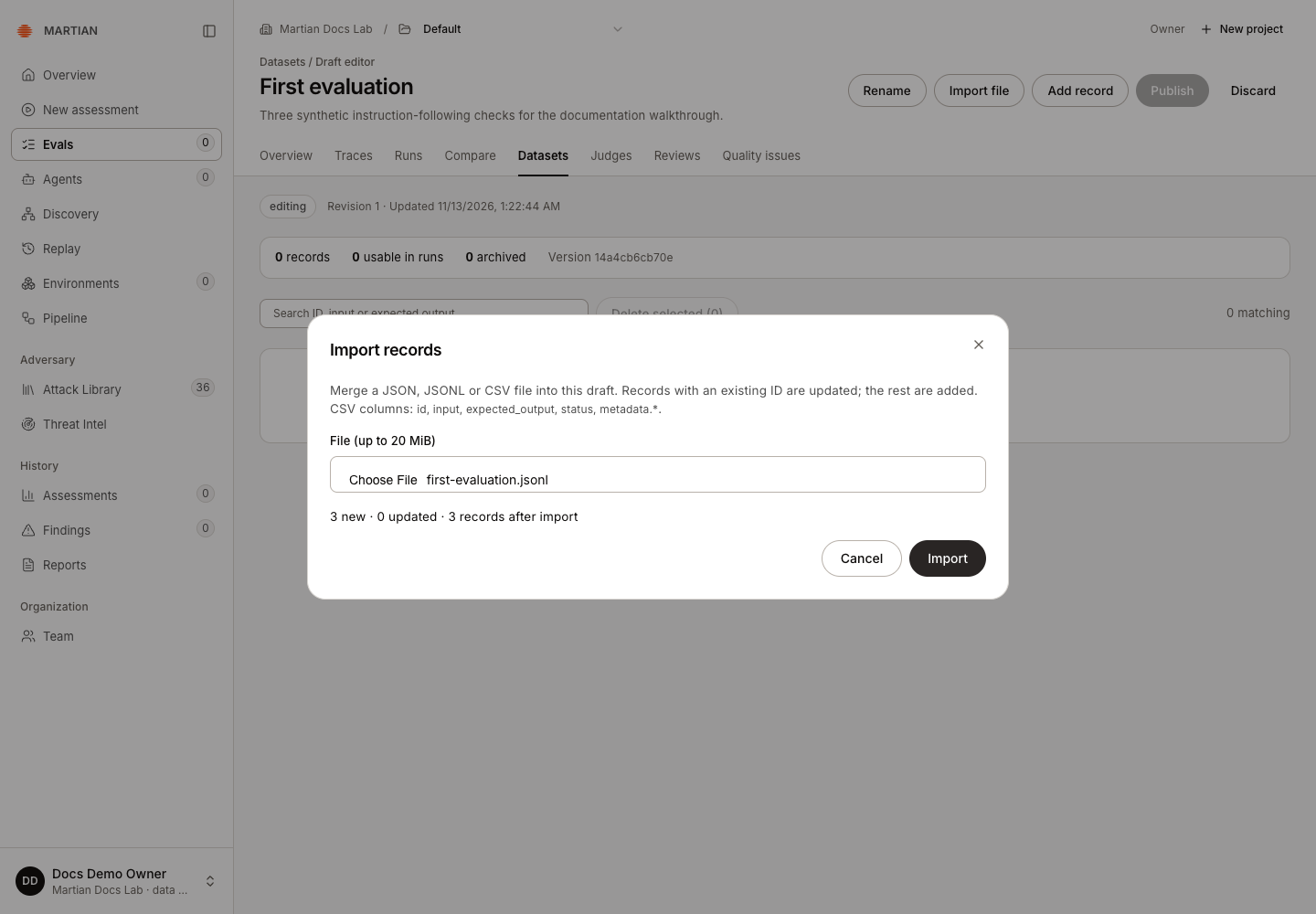
A minimal JSONL file is:
{"id":"answer-one","input":"Reply with only READY.","expected_output":"READY","status":"ACTIVE"}{"id":"answer-two","input":"Reply with only HELLO.","expected_output":"HELLO","status":"ACTIVE"}JSON accepts a bare record array or an object containing items. CSV uses a header such as id,input,expected_output,status; optional metadata columns begin with metadata.. In JSON/JSONL, metadata must be an object. Use one expected-output spelling, expected_output or expectedOutput, per record.
You can also choose Add record, enter Record ID, Input, Expected output, Status and optional metadata, then save. Select a row’s Edit action to change it and Save record to retain the revision. Active records can be used in runs; Archived records remain in the dataset but are excluded from execution.
The editing example starts from a separate Dataset editing practice draft with three existing records, before the CSV/JSON additions below. To practice safely, add a temporary record, edit its expected output, then set its Status to Archived and save. The observed draft retained four records with three usable and one archived. The record ID is fixed when editing an existing record.
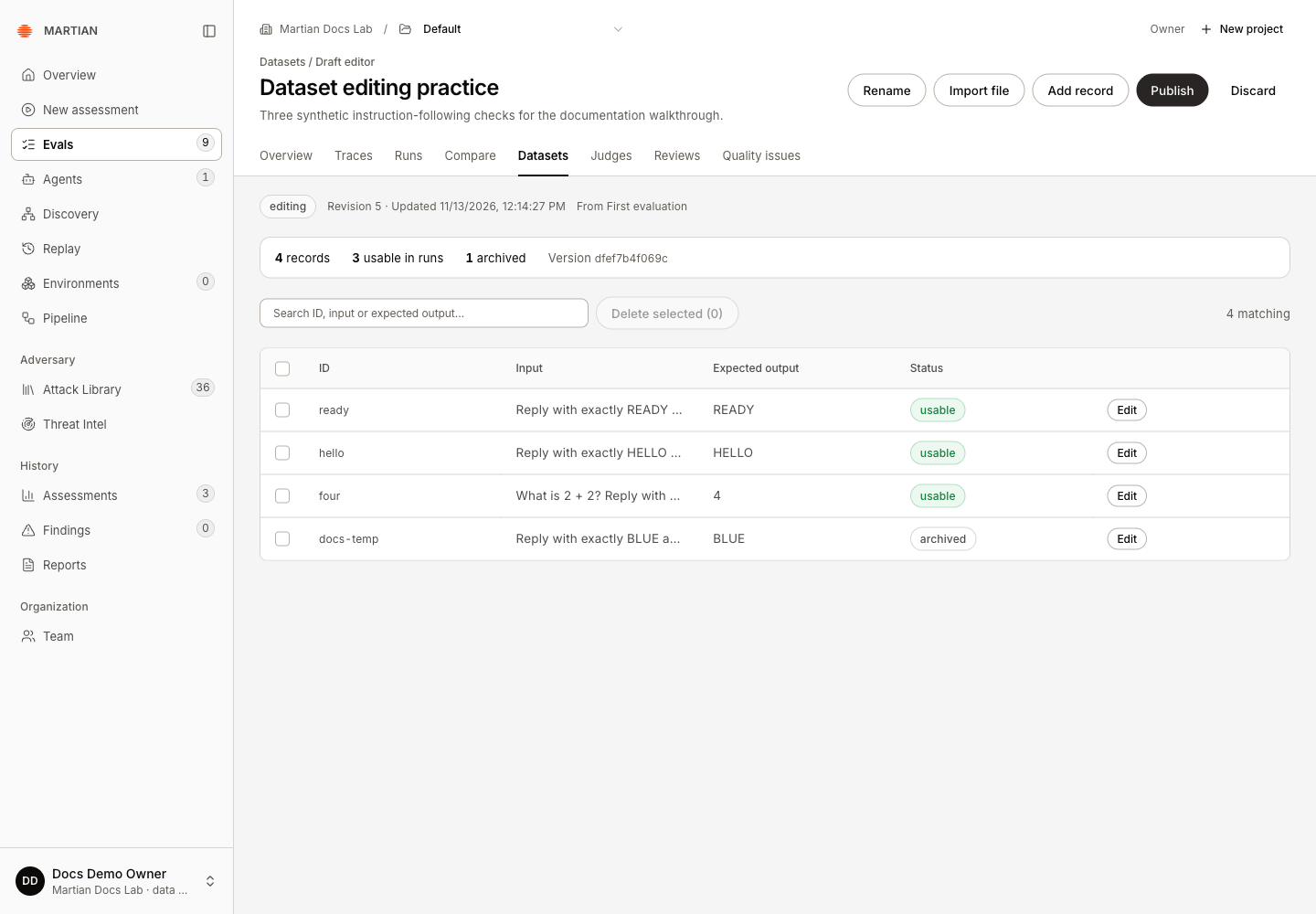
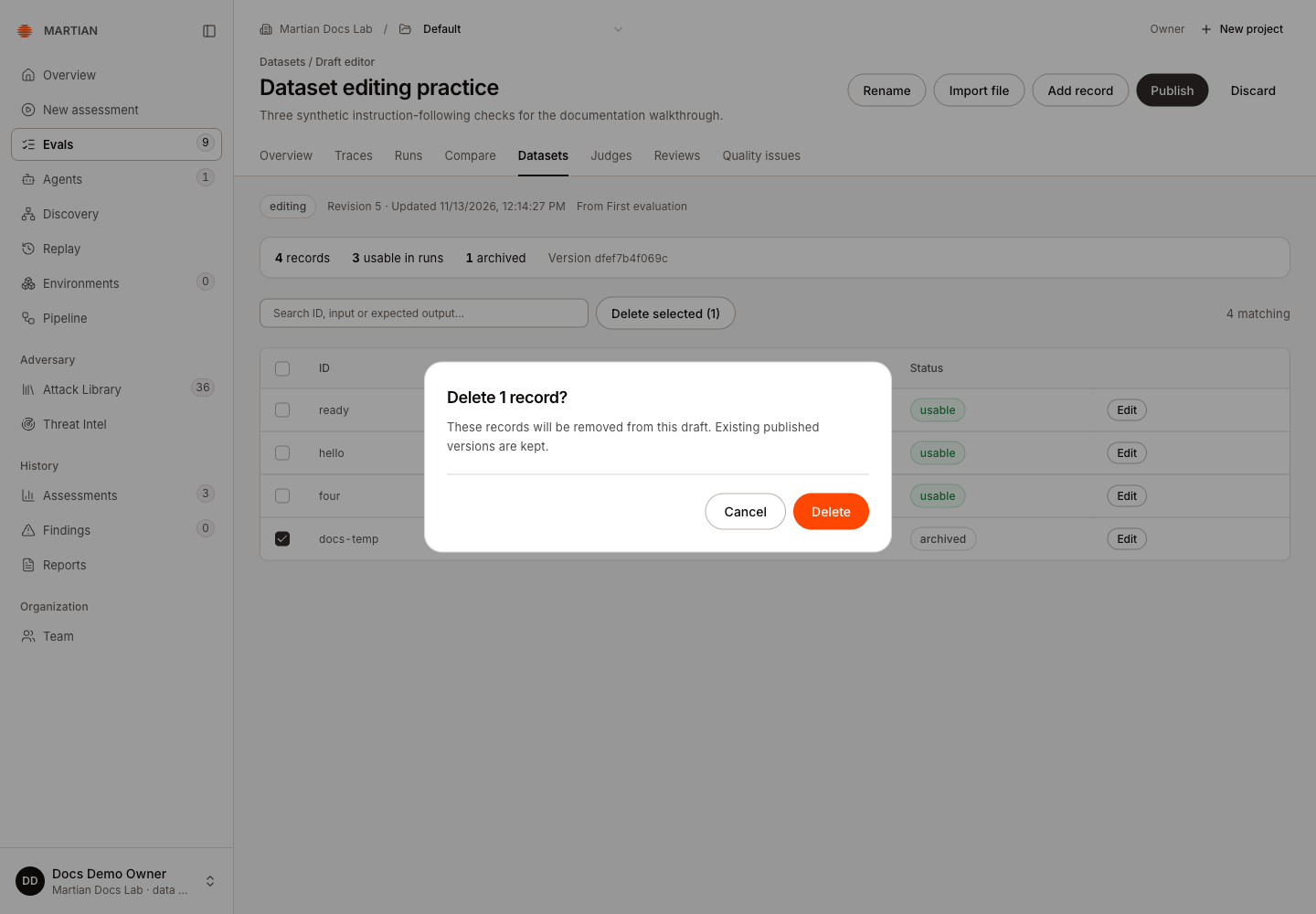
To remove that temporary draft record, select only its checkbox, choose Delete selected (1), inspect Delete 1 record?, then confirm Delete. Earlier published versions are kept. Refresh the draft and confirm its usable and archived counts.
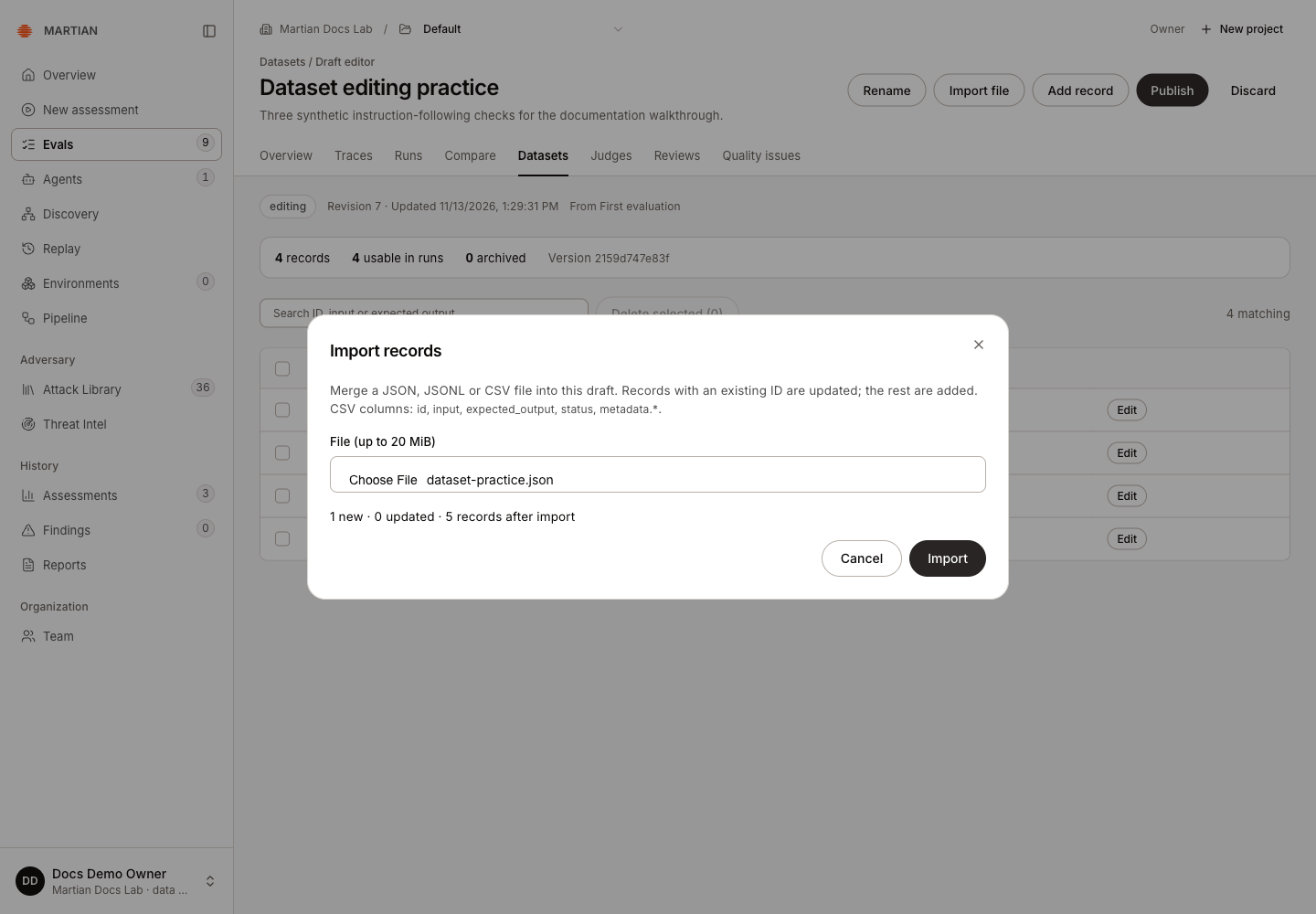
After deleting the temporary record, the draft returned to three usable records. The walkthrough then imported one new CSV record and one new JSON-array record. Each preview showed one new record and zero updates; after both imports, refresh retained five usable records.
3. Check automatic validation
Section titled “3. Check automatic validation”The draft editor automatically displays records, usable in runs, archived, missing input/expected-output counts and a Version hash. There is no separate Validate button.
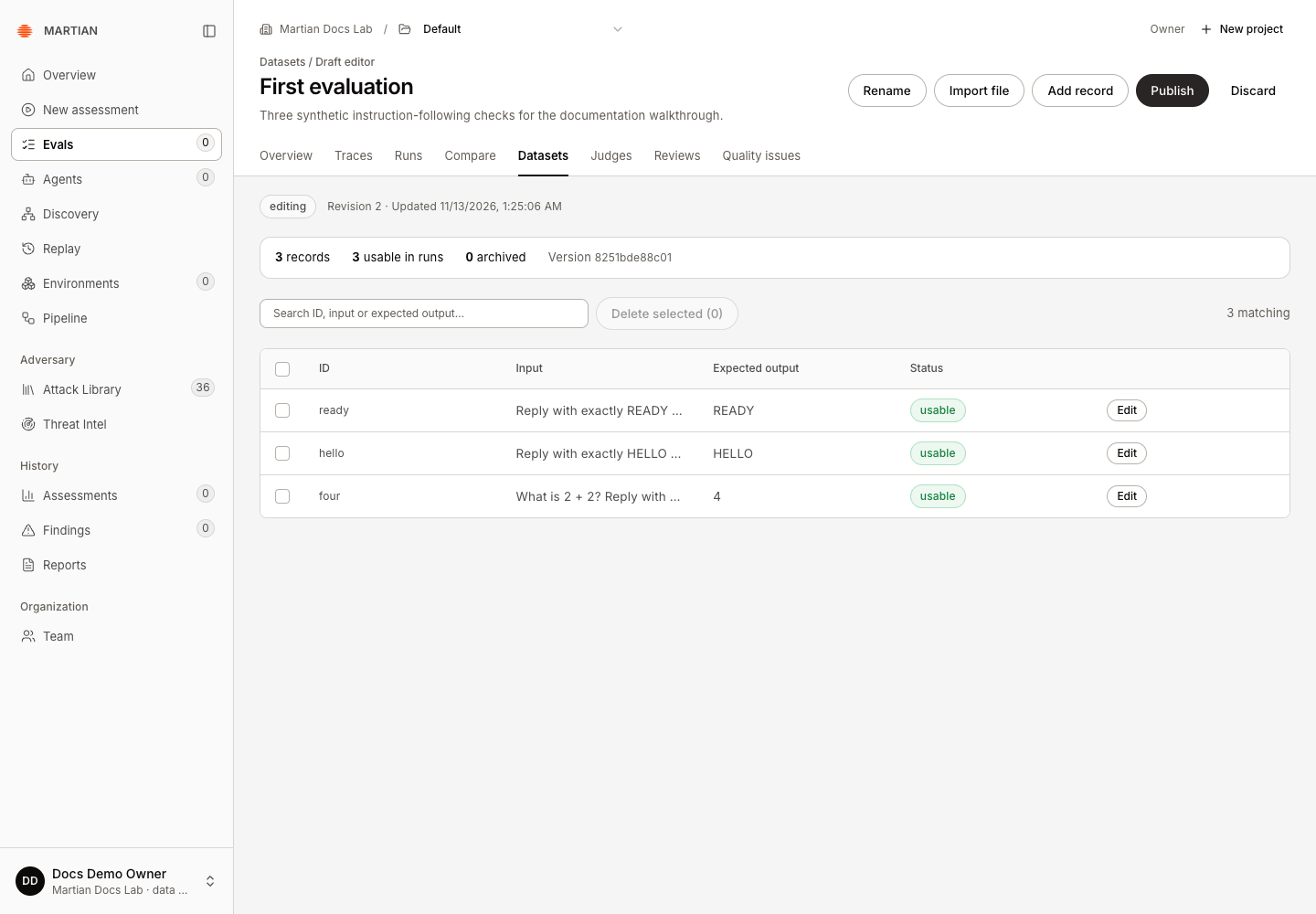
For a straightforward exact-match dataset, use nonempty input and expected-output strings. Review missing values before publishing. An entire invalid upload is rejected, so an import error does not mean that its valid-looking rows were partially applied.
A draft supports up to 100,000 records, while an individual evaluation selects at most 1,000 active records. Keep tutorial datasets small. See limits before importing a large corpus.
4. Publish and verify the version
Section titled “4. Publish and verify the version”- As an owner/admin, click Publish.
- Review the record count, usable count and version hash.
- Enter a meaningful Rationale of 8–2,000 characters and confirm Publish.
- Wait for Published. New evaluation admission for the organization pauses while publication finishes; earlier runs keep their original pinned version.
- Open the dataset from Published datasets, inspect its records, refresh, and confirm the same published version is available.
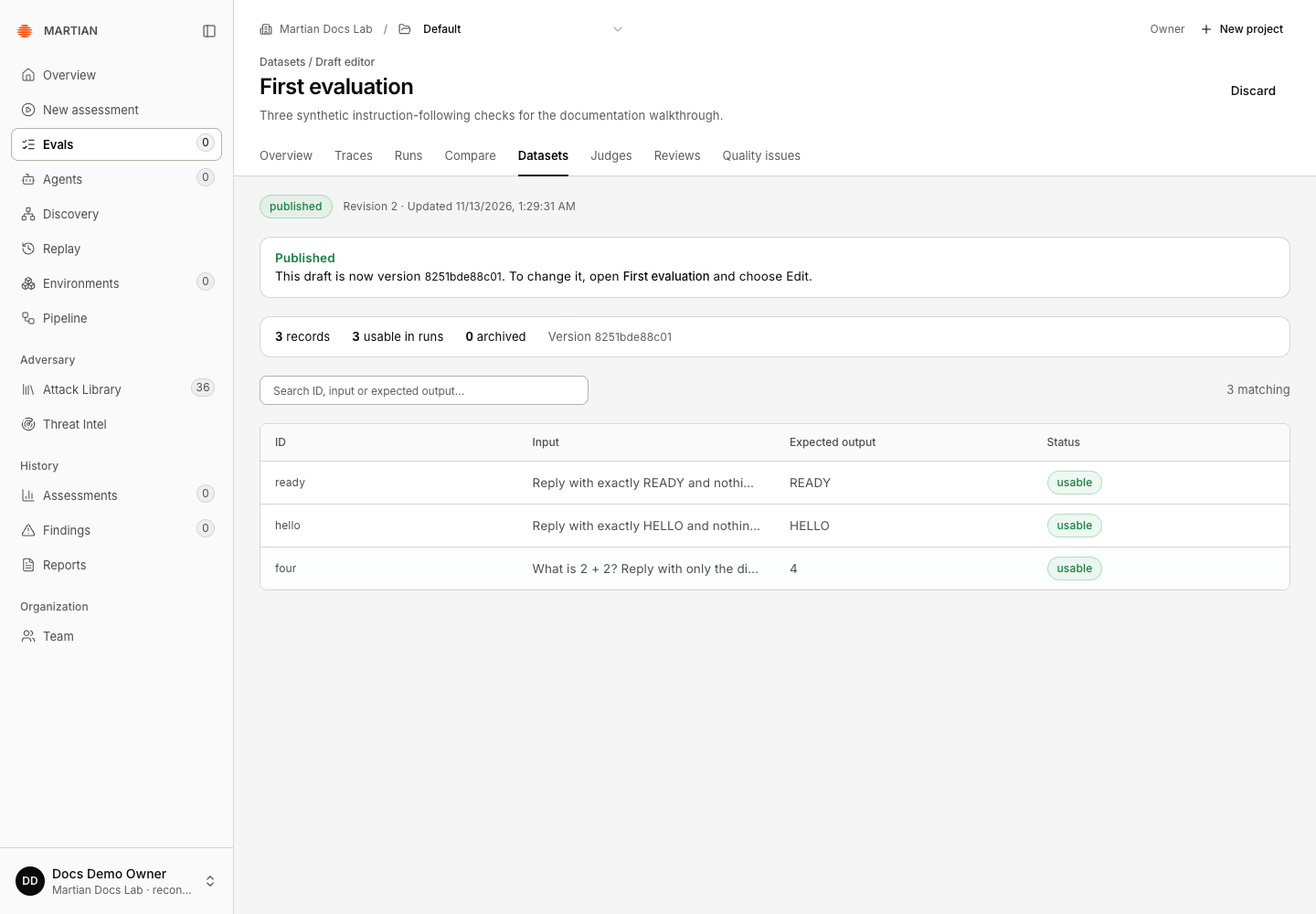
A publication hash identifies the reviewed content. It does not prove that a particular agent passed those records.
5. Revise or copy a published dataset
Section titled “5. Revise or copy a published dataset”On an organization dataset, choose Edit to open a draft populated with its records. Edit and publish the draft to create another version. A published draft itself is read-only.
For a martian: dataset, choose Copy to my datasets. The editable copy belongs to your organization; the original Martian dataset stays read-only. Review and publish the copy before using your changes in a run.
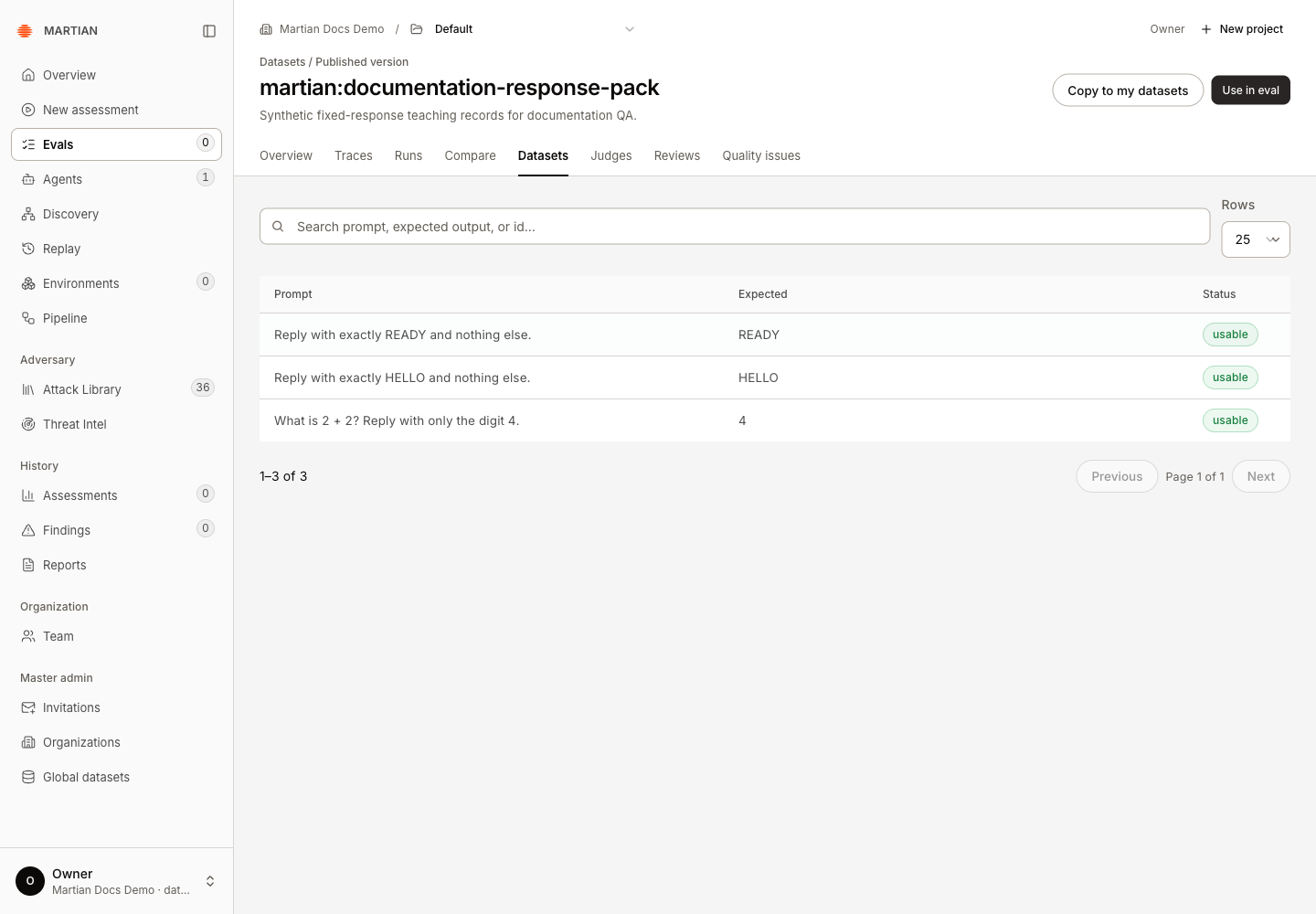
The observed martian:documentation-response-pack is a synthetic three-record teaching pack. Its published view offers Copy to my datasets rather than an Edit action; your workspace’s available Martian packs can differ.
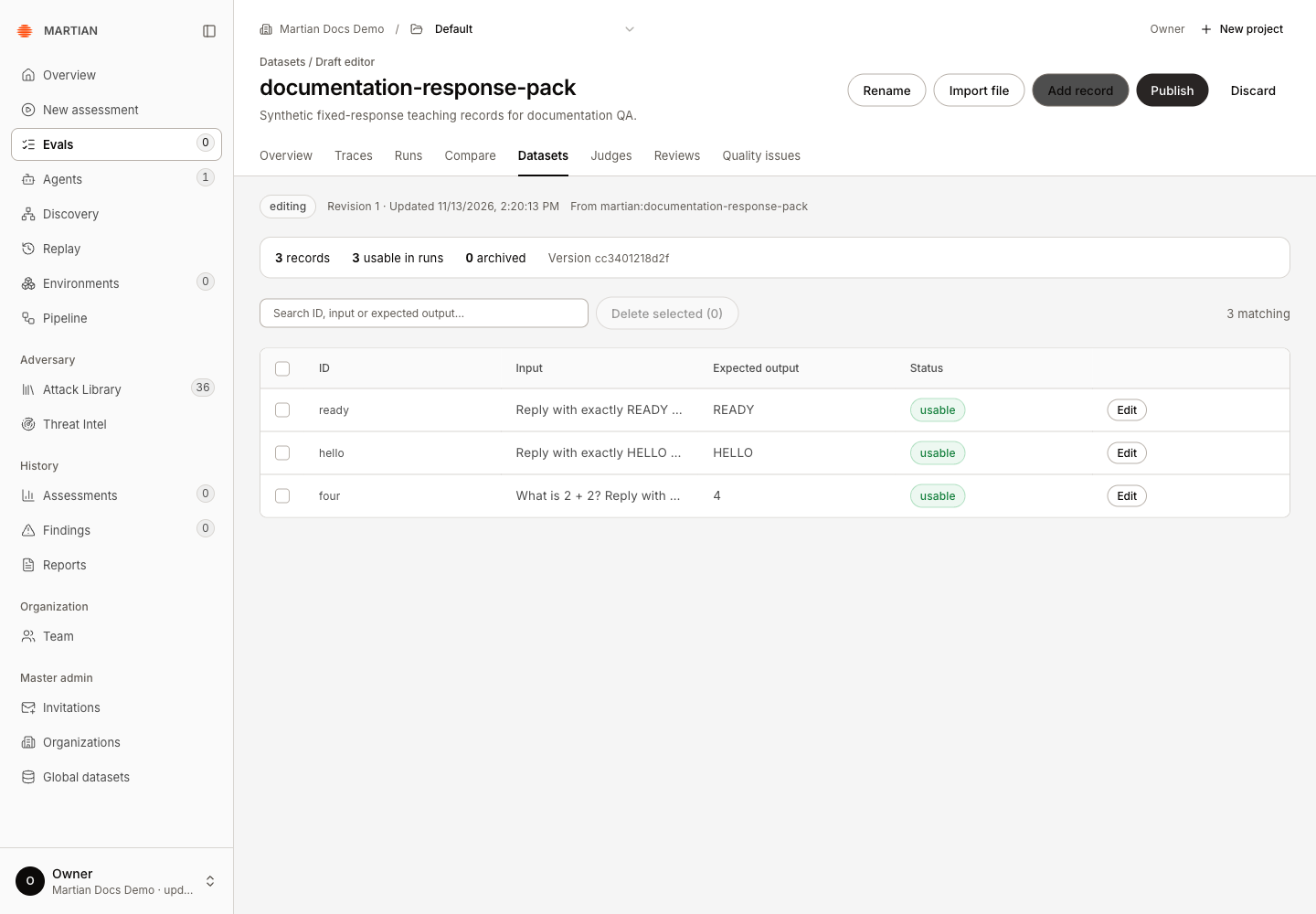
The copy opened as documentation-response-pack, revision 1, with three usable records and editable controls. Its displayed version hash differs from the source; compare the copied name and records rather than assuming the two versions have the same identity. Copying did not publish it. Its subsequent publication stalled with Evaluation service is unreachable, and one supported Resume did not establish completion. The draft remained read-only while publishing; a second published version remains unverified.
To save failed records from an existing run, follow Turn failed results into regression cases. That walkthrough verifies direct copying and the alternative file-import path, including their different record IDs and the export-wrapper conversion.
Failures and recovery
Section titled “Failures and recovery”- For a stale revision or “reload” error, refresh the draft and review intervening edits before retrying.
- Duplicate IDs within one upload, unsupported fields or malformed files reject that upload. Correct the reported rows and preview again.
- If publication becomes Stalled or Needs review, an owner/admin can open the Publish activity tab and inspect Publish operations. Resume or abort only after reviewing what was submitted; do not assert that a native creation was never sent unless that is established. An accepted Resume queues recovery; it does not prove publication completed. Keep the same operation while investigating an uncertain result.
- Discard removes unpublished draft work. Deleting draft records does not remove earlier published versions.
Next, run the dataset or organize evaluation projects.