Workspace
Invite teammates and understand roles
Give a teammate the appropriate access to your organization and verify that the invitation and membership are retained. Each email address belongs to one organization in the current product.
Before you start
Section titled “Before you start”An Owner or Admin can invite teammates. Any tenant role can inspect the member list. Use the organization address returned during account setup. New organizations are provisioned through an operator-issued owner invitation; a normal team invite joins an existing organization.
| Role | Typical customer authority |
|---|---|
| Viewer | Inspect organization data and supported saved-result exports; no assessment, dataset-authoring or control writes |
| Member | Run assessments/Evals, create supported environments/data, and perform permitted authoring/review tasks |
| Admin | Member actions plus connection approval, invitations, publishing/management and scoped API-key/control administration |
| Owner | The highest organization role, including admin authority |
Feature-specific restrictions still apply. An API key has its own scopes and restrictions; it is not an Owner browser session. See the permissions reference.
Invite a teammate
Section titled “Invite a teammate”- Open Team and verify the organization name and current Members.
- Under Invite a teammate, fill Recipient name, Email and Role: Member, Admin or Viewer. Grant only the role the task needs.
- Optionally enter Internal description and Welcome note. Internal description is visible to invitation administrators, not included in the email. The welcome note is shown to the recipient or included in an email, depending on delivery mode.
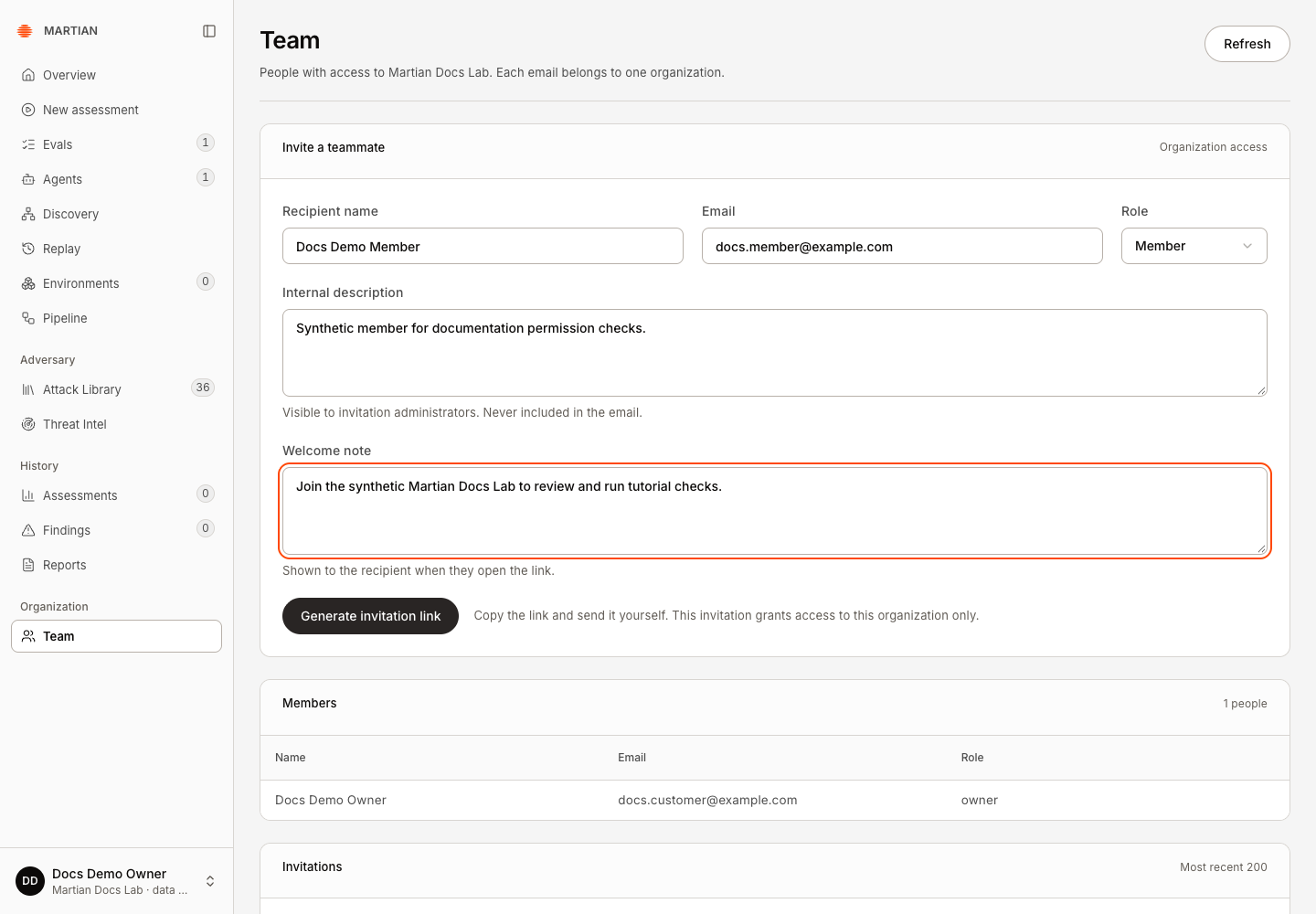
- In manual mode, click Generate invitation link. Privately copy it with Copy link, then Done. No email was sent. The live link is a bearer credential; do not put it in screenshots or public tickets.
- In configured email mode, the button is Send invitation. Verify the intended recipient before sending. An unconfigured sender must be repaired by your operator; an accepted mail submission is not proof of inbox delivery.
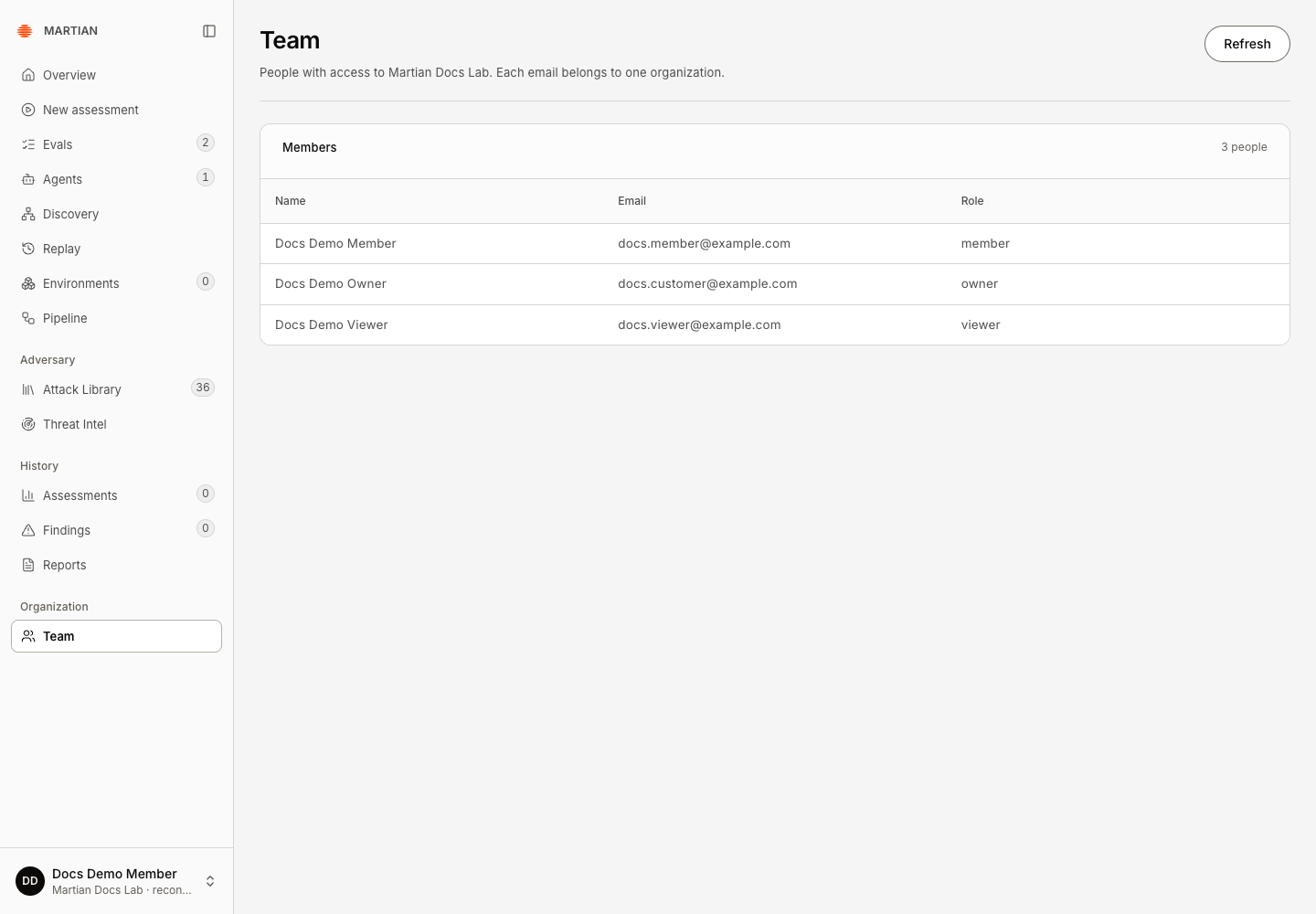
- Check the invitation row’s recipient, pending/delivery state and expiry. The recipient confirms their role on acceptance; after joining, verify it in Members. Refresh Team to verify the retained invitation. Keep manual links in the approved private channel only.
Accept an invitation and sign in
Section titled “Accept an invitation and sign in”- The recipient opens the complete private link while signed out of any other account.
- Confirm the organization, invited email, role and expiry. Enter Your name, Password and Confirm password, then Join organization. Use a password between 12 and 72 characters.
- For an organization-owner invitation, complete Organization name, Organization subdomain and About your organization, then Create organization. This is distinct from joining an existing team.
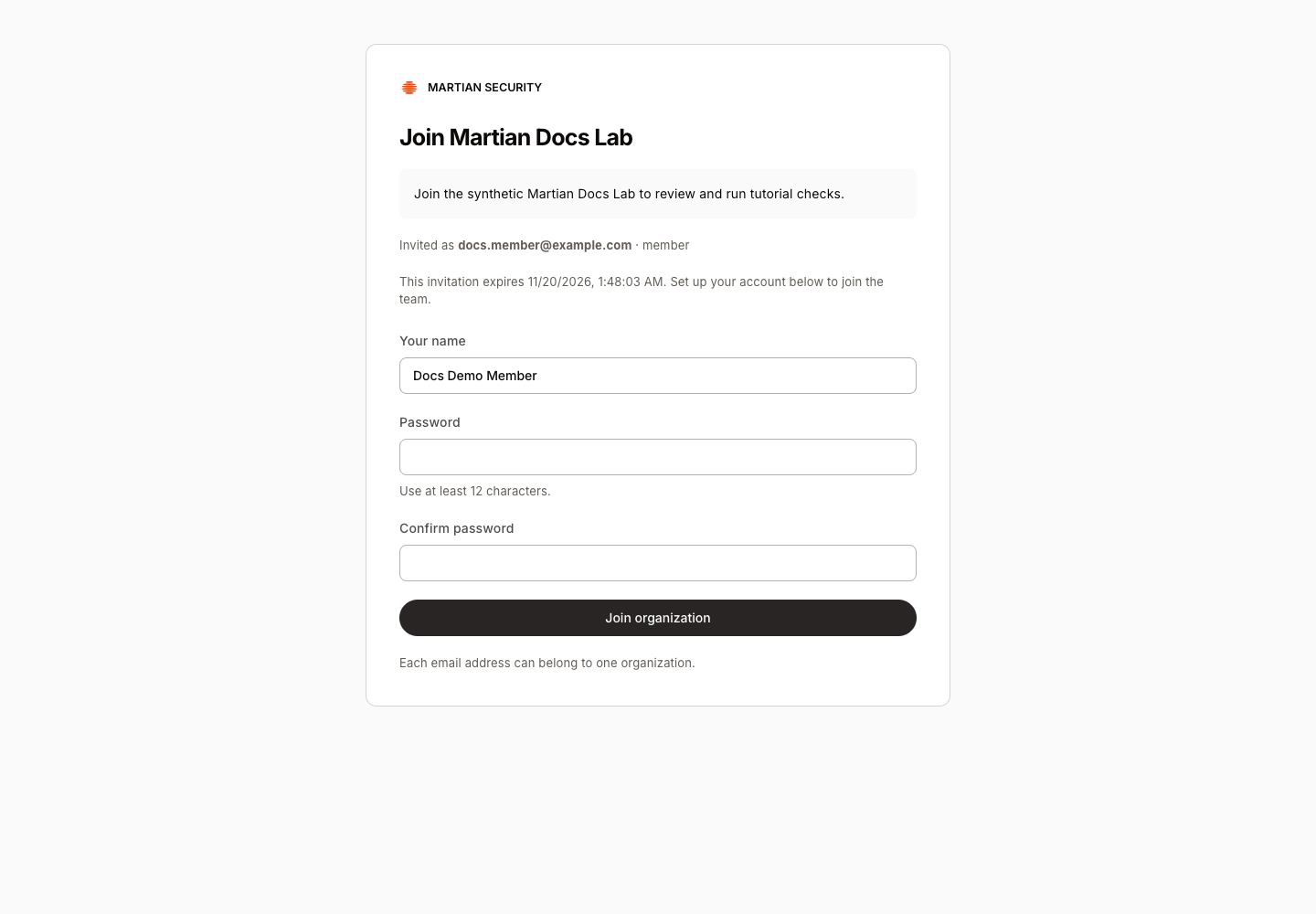
- Confirm You joined your organization, Your workspace is ready, or Your account is ready, then Continue to sign in at the returned organization address.
- Sign in with the invited email and chosen password. Open Team and verify the member/role after refresh. Account readiness and Evals readiness are separate: Eval setup needs attention requires operator completion even when sign-in succeeds.
Replace, revoke or recover an invitation
Section titled “Replace, revoke or recover an invitation”- Use Generate new link or the displayed replace/resend action when a private link is lost. Replacing a link invalidates the old one and can be subject to a cooldown.
- Revoke invitation prevents future acceptance. It is not a promise that an already accepted member was removed.
- An incomplete, expired, revoked or consumed link needs the inviter’s help. If acceptance may already have completed, try signing in before requesting another invitation.
- A user signed in as another account must sign out before accepting for a different email.
- A wrong tenant host or foreign organization resource is rejected. Visible navigation does not override the role enforced by the API.
The Team screen lists existing members and manages invitations. Do not assume it provides a complete existing-member role-change or removal workflow when those controls are absent in your release.
Next: connect an agent, run your first assessment, or review permissions.