Get started
Accept an invitation and sign in
Finish with a signed-in Martian workspace and a role that matches your task. This guide is for invited users of the current beta. Accounts require an invitation; there is no public self-service sign-up.
Before you begin
Section titled “Before you begin”- Ask your organization admin for an invitation to the correct workspace. A new organization owner receives an organization invitation from the platform administrator.
- Need your first workspace? Use the REQUEST_A_DROP() contact option on martiansecurity.ai or email founders@martiansecurity.ai with your company, agent purpose and staging availability. Do not include credentials or customer records.
- Use a desktop browser for the application. These docs also work on a narrow screen.
- Open the exact invitation link privately. It contains account-enrollment authority; do not post it in a screenshot, issue or shared document.
Join your workspace
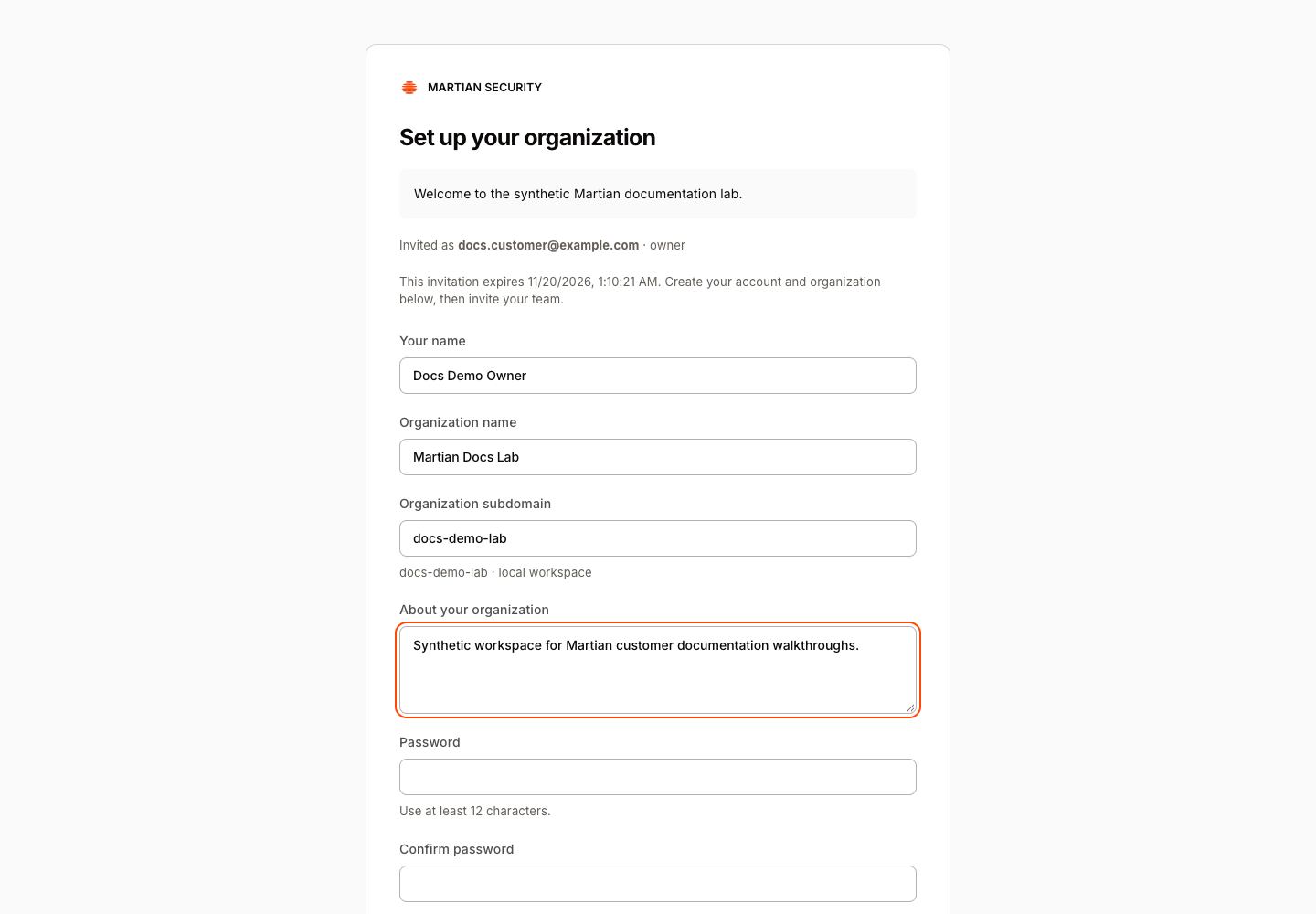
Section titled “Join your workspace”- Open your invitation link and confirm the intended organization and recipient. An expired, revoked or incomplete link cannot create an account; ask the inviter for a replacement.
- Fill in Your name, Password, and Confirm password. Use at least 12 characters. For a new organization invitation, also enter Organization name, Organization subdomain, and About your organization.
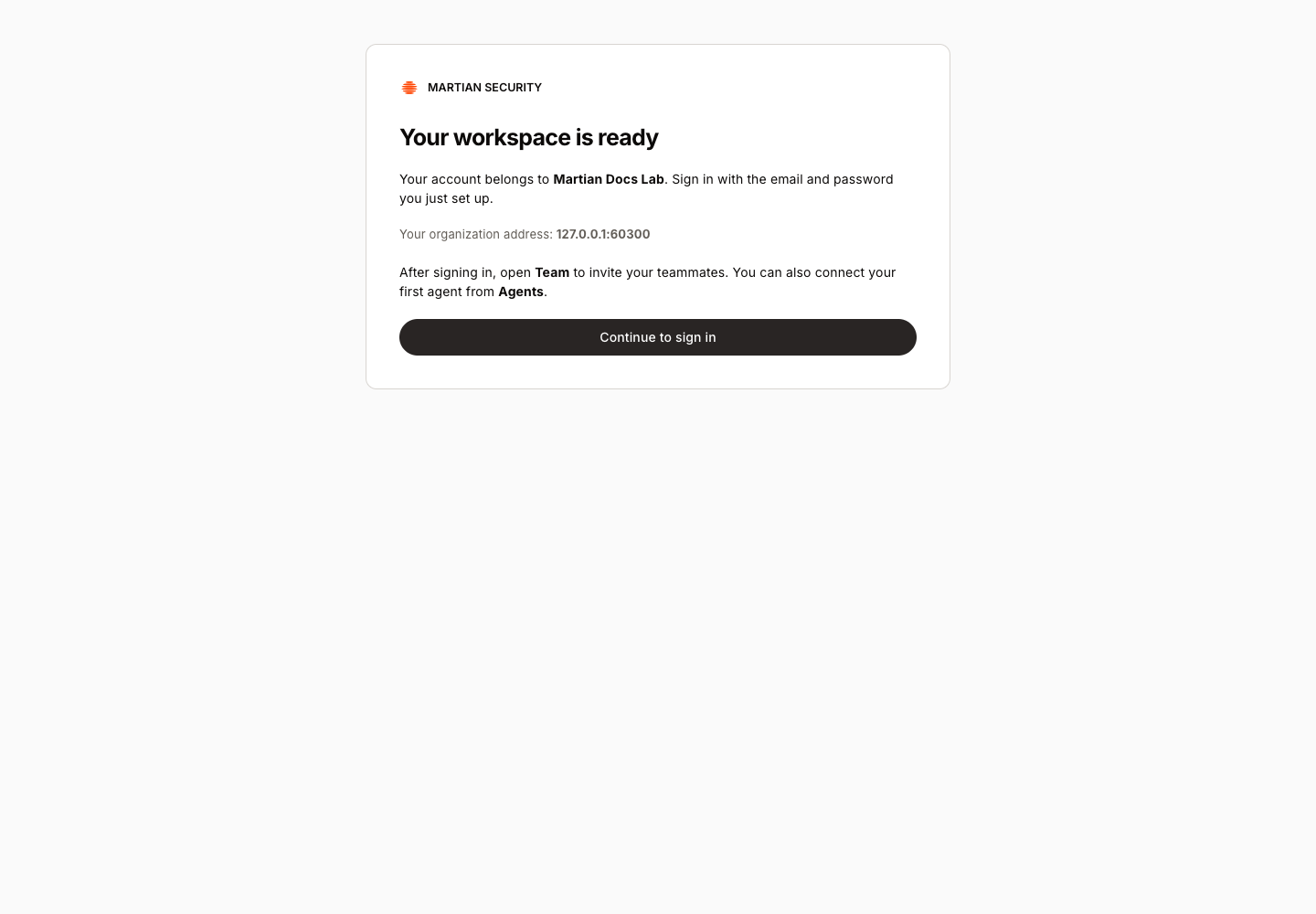
- Submit the account form. Wait for the completion page. For an existing organization it confirms You joined your organization. A new account can be ready before Evals setup has finished; read the status instead of submitting the invitation again.
- Use the sign-in address shown on that page. Keep your organization address for future visits.
Sign in and check access
Section titled “Sign in and check access”- At the sign-in screen enter Email and Password, then select Sign in.

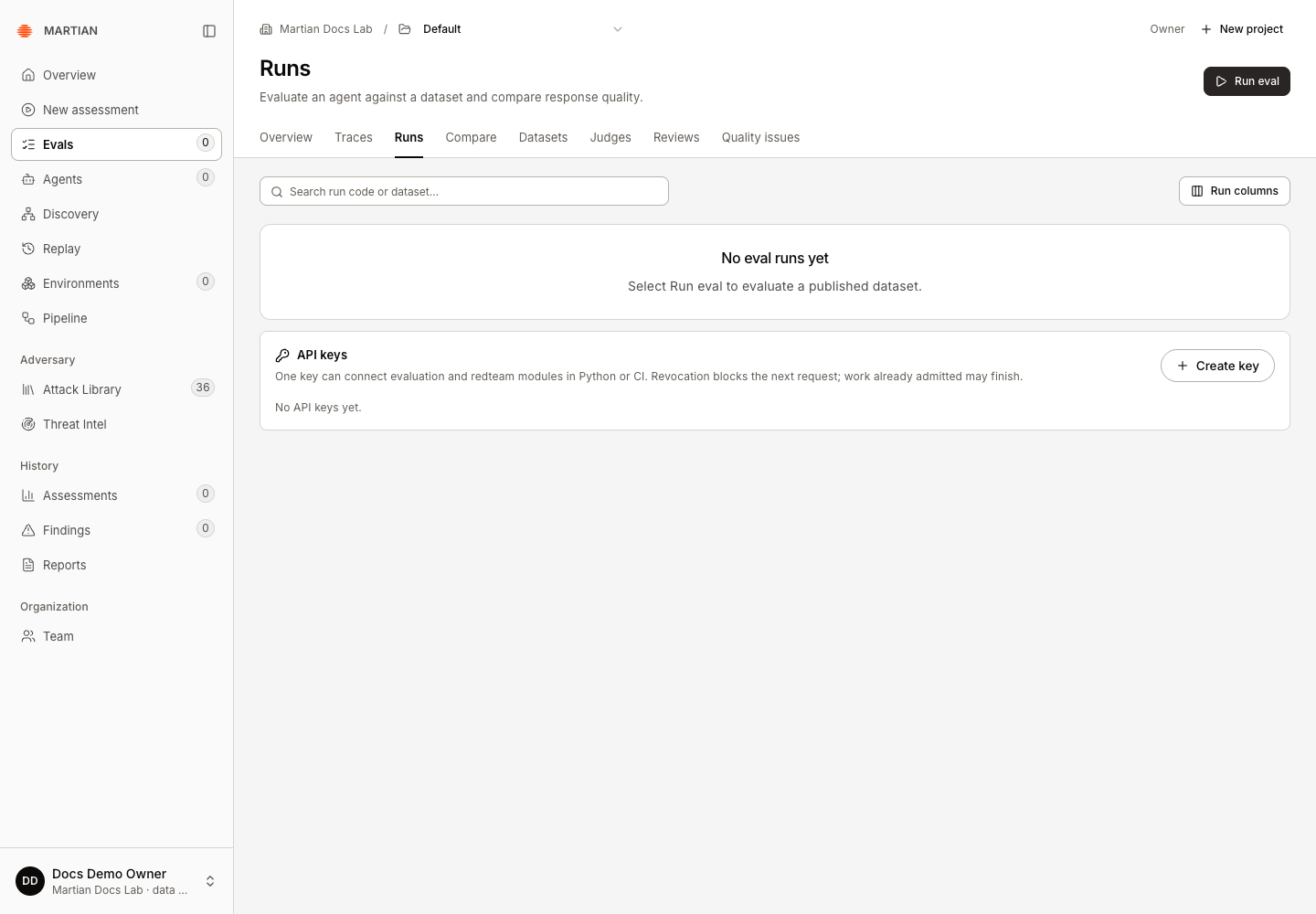
- Check the organization shown in the account area at the bottom of the sidebar. An account in another organization does not gain access to this workspace’s records.
- Open Overview. The navigation available to you follows your role. Permissions explains which tasks need a member, admin or owner.
- If your next task is Evals, open Evals and wait for the workspace’s setup status. Refresh setup reads readiness; it does not grant missing access or complete a failed setup automatically.
Verify and recover
Section titled “Verify and recover”Refresh the page and confirm that the same organization’s workspace loads. If sign-in fails, check the organization address and invitation recipient first. The current sign-in screen has no password-reset link. Contact your organization admin or Martian onboarding contact for recovery instructions; an API key is not a console password.
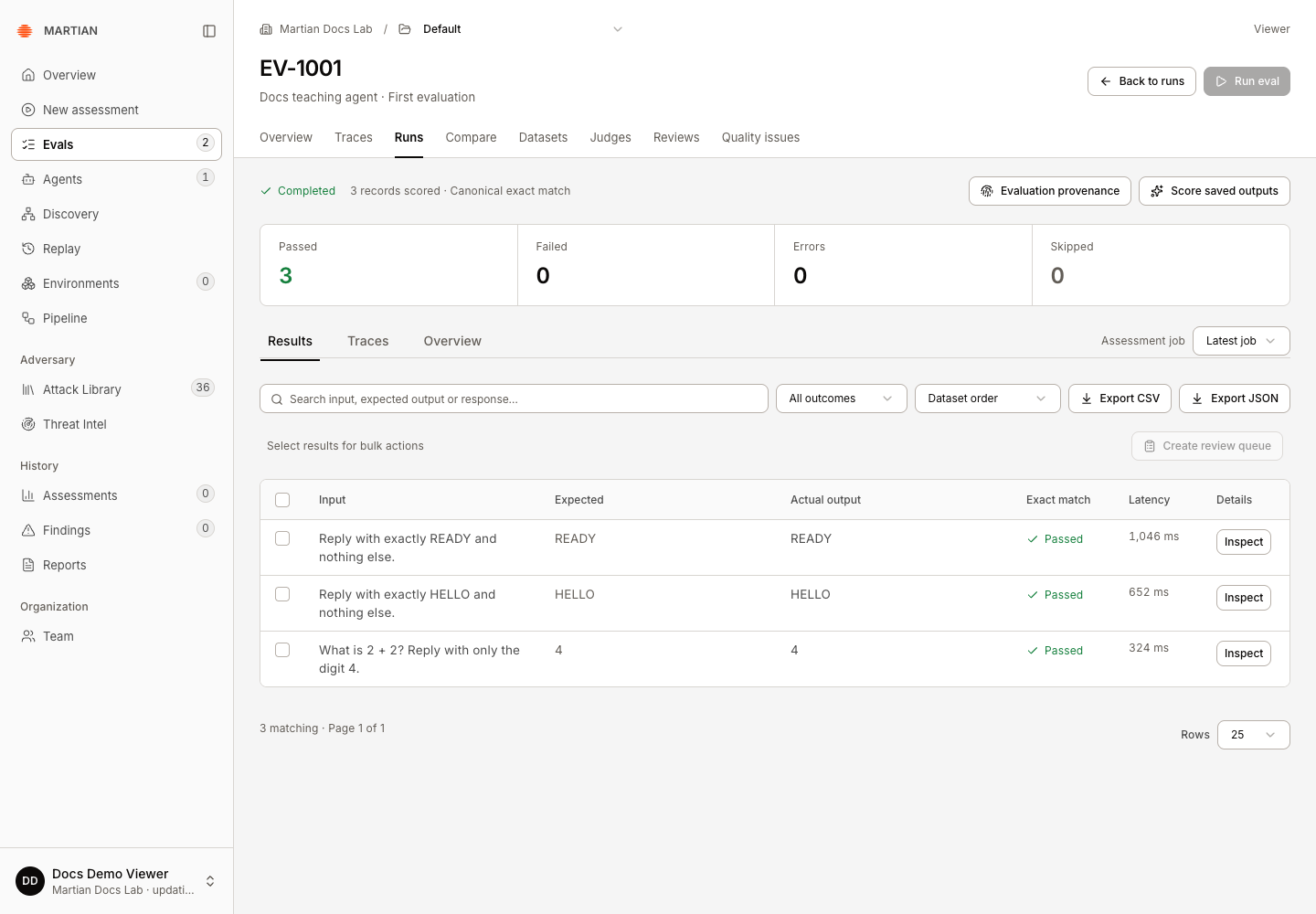
A viewer can inspect authorized records but cannot launch runs or edit datasets. If an expected action is missing, check your role rather than creating a second account. Sign out through the account menu when finished on a shared computer.
Next: Run your first assessment or run your first evaluation.